

บทแนะนำนี้แสดงวิธีเพิ่มแผนที่ที่มีการจัดรูปแบบที่กำหนดเองลงในแอป Android โดยใช้โหมดกลางคืนเป็นตัวอย่างของการจัดรูปแบบที่กำหนดเอง
ตัวเลือกรูปแบบช่วยให้คุณปรับแต่งการนำเสนอรูปแบบแผนที่ Google มาตรฐานได้ โดยเปลี่ยนการแสดงผลภาพของฟีเจอร์ต่างๆ เช่น ถนน สวนสาธารณะ ธุรกิจ และจุดที่น่าสนใจอื่นๆ ซึ่งหมายความว่าคุณสามารถเน้นองค์ประกอบบางอย่างของแผนที่หรือทำให้แผนที่เข้ากับสไตล์ของแอปได้
การจัดรูปแบบใช้ได้กับแผนที่ประเภท normal เท่านั้น การจัดรูปแบบไม่มีผลต่อแผนที่ในอาคาร
รับโค้ด
โคลนหรือดาวน์โหลดที่เก็บตัวอย่าง Google Maps Android API v2 จาก GitHub
ตั้งค่าโปรเจ็กต์การพัฒนา
ทำตามขั้นตอนต่อไปนี้เพื่อสร้างโปรเจ็กต์บทแนะนำใน Android Studio
- ดาวน์โหลดและติดตั้ง Android Studio
- เพิ่มแพ็กเกจบริการ Google Play ลงใน Android Studio
- โคลนหรือดาวน์โหลดที่เก็บตัวอย่าง Google Maps Android API v2 หากคุณไม่ได้ทำเมื่อเริ่มอ่านบทแนะนำนี้
นำเข้าโปรเจ็กต์บทแนะนำโดยทำดังนี้
- ใน Android Studio ให้เลือกไฟล์ > ใหม่ > นำเข้าโปรเจ็กต์
- ไปที่ตำแหน่งที่คุณบันทึกที่เก็บตัวอย่าง Google Maps Android API v2 ไว้หลังจากดาวน์โหลด
- ค้นหาโปรเจ็กต์ StyledMap ได้ที่ตำแหน่งนี้
PATH-TO-SAVED-REPO/android-samples/tutorials/StyledMap - เลือกไดเรกทอรีโปรเจ็กต์ แล้วคลิกตกลง ตอนนี้ Android Studio จะสร้างโปรเจ็กต์ของคุณโดยใช้เครื่องมือสร้าง Gradle
รับคีย์ API และเปิดใช้ API ที่จำเป็น
หากต้องการทำตามบทแนะนำนี้ให้เสร็จสมบูรณ์ คุณต้องมีคีย์ Google API ที่ได้รับอนุญาตให้ใช้ Maps SDK สำหรับ Android
คลิกปุ่มด้านล่างเพื่อรับคีย์และเปิดใช้งาน API
ดูรายละเอียดเพิ่มเติมได้ที่คู่มือรับคีย์ API
เพิ่มคีย์ API ลงในแอป
- แก้ไขไฟล์
gradle.propertiesของโปรเจ็กต์ วางคีย์ API ลงในค่าของพร็อพเพอร์ตี้
GOOGLE_MAPS_API_KEYเมื่อคุณสร้างแอป Gradle จะคัดลอกคีย์ API ลงในไฟล์ Manifest สำหรับ Android ของแอปGOOGLE_MAPS_API_KEY=PASTE-YOUR-API-KEY-HERE
สร้างและเรียกใช้แอป
- เชื่อมต่ออุปกรณ์ Android กับคอมพิวเตอร์ ทำตามวิธีการเพื่อเปิดใช้ตัวเลือกสำหรับนักพัฒนาแอปในอุปกรณ์ Android และกำหนดค่าระบบให้ตรวจหาอุปกรณ์ (หรือจะใช้ Android Virtual Device (AVD) Manager เพื่อกำหนดค่าอุปกรณ์เสมือนจริงก็ได้ เมื่อเลือกโปรแกรมจำลอง ให้ตรวจสอบว่าคุณเลือกอิมเมจที่มี Google APIs โปรดดูรายละเอียดเพิ่มเติมในคู่มือเริ่มต้นใช้งาน)
- ใน Android Studio ให้คลิกตัวเลือกเมนูเรียกใช้ (หรือไอคอนปุ่มเล่น) เลือกอุปกรณ์ตามข้อความแจ้ง
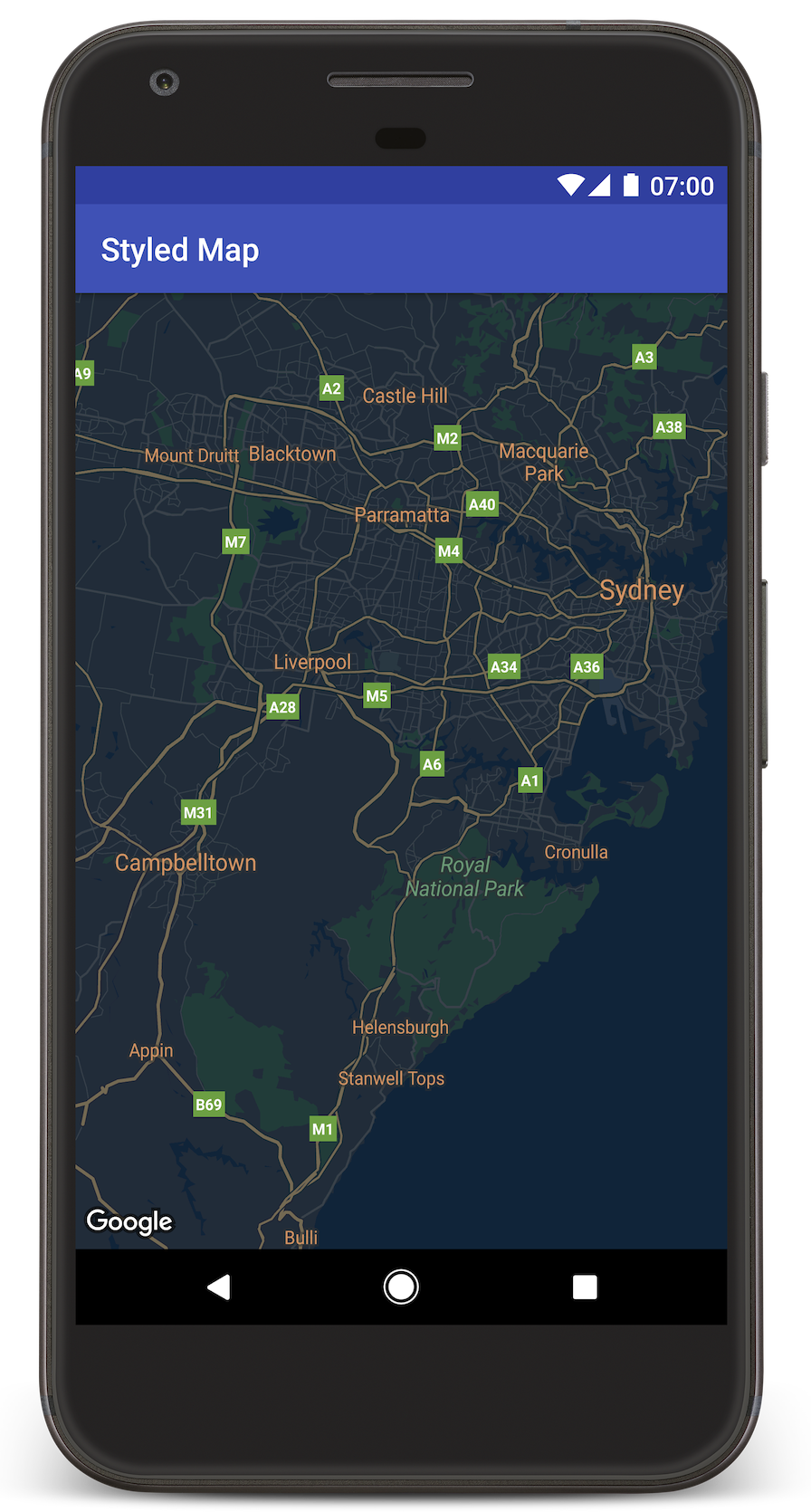
Android Studio จะเรียกใช้ Gradle เพื่อสร้างแอป แล้วเรียกใช้แอปในอุปกรณ์หรือในโปรแกรมจำลอง คุณควรเห็นแผนที่ที่มีการจัดรูปแบบมืด (โหมดกลางคืน) คล้ายกับรูปภาพในหน้านี้
การแก้ปัญหา:
- หากไม่เห็นแผนที่ ให้ตรวจสอบว่าคุณได้รับคีย์ API และเพิ่มลงในแอปแล้วตามที่อธิบายไว้ข้างต้น ตรวจสอบการลงชื่อเข้าใช้ใน Android Monitor ของ Android Studio เพื่อดูข้อความแสดงข้อผิดพลาดเกี่ยวกับคีย์ API
- ใช้เครื่องมือแก้ไขข้อบกพร่องของ Android Studio เพื่อดูบันทึกและแก้ไขข้อบกพร่องของแอป
ทำความเข้าใจโค้ด
บทแนะนำส่วนนี้จะอธิบายส่วนที่สำคัญที่สุดของแอป StyledMap เพื่อช่วยให้คุณเข้าใจวิธีสร้างแอปที่คล้ายกัน
เพิ่มทรัพยากรที่มีออบเจ็กต์สไตล์ JSON
เพิ่มทรัพยากรลงในโปรเจ็กต์การพัฒนา ซึ่งมีการประกาศสไตล์ในรูปแบบ JSON คุณสามารถใช้ทรัพยากรดิบหรือสตริงได้ ดังที่แสดงในตัวอย่างด้านล่าง
ทรัพยากรดิบ
กำหนดทรัพยากรดิบใน /res/raw/style_json.json ซึ่งมีการประกาศสไตล์ JSON สำหรับการจัดสไตล์โหมดกลางคืน ดังนี้
ทรัพยากรสตริง
กำหนดทรัพยากรสตริงใน /res/values/style_strings.xml ซึ่งมีการประกาศสไตล์ JSON สำหรับการจัดสไตล์โหมดกลางคืน บทแนะนำนี้ใช้ชื่อสตริง style_json ในไฟล์นี้ คุณต้องใช้แบ็กสแลชเพื่อหลีกเครื่องหมายคำพูด ดังนี้
ส่งออบเจ็กต์สไตล์ JSON ไปยังแผนที่
หากต้องการจัดสไตล์แผนที่ ให้เรียกใช้ GoogleMap.setMapStyle() โดยส่งออบเจ็กต์ MapStyleOptions ที่มีการประกาศสไตล์ในรูปแบบ JSON
ทรัพยากรดิบ
ตัวอย่างโค้ดต่อไปนี้ถือว่าโปรเจ็กต์ของคุณมีทรัพยากรดิบชื่อ style_json
// Copyright 2020 Google LLC
//
// Licensed under the Apache License, Version 2.0 (the "License");
// you may not use this file except in compliance with the License.
// You may obtain a copy of the License at
//
//      http://www.apache.org/licenses/LICENSE-2.0
//
// Unless required by applicable law or agreed to in writing, software
// distributed under the License is distributed on an "AS IS" BASIS,
// WITHOUT WARRANTIES OR CONDITIONS OF ANY KIND, either express or implied.
// See the License for the specific language governing permissions and
// limitations under the License.

package com.example.styledmap;

import android.content.res.Resources;
import android.os.Bundle;
import android.util.Log;
import androidx.appcompat.app.AppCompatActivity;
import com.google.android.gms.maps.CameraUpdateFactory;
import com.google.android.gms.maps.GoogleMap;
import com.google.android.gms.maps.OnMapReadyCallback;
import com.google.android.gms.maps.SupportMapFragment;
import com.google.android.gms.maps.model.LatLng;
import com.google.android.gms.maps.model.MapStyleOptions;

/** A styled map using JSON styles from a raw resource. */
public class MapsActivityRaw extends AppCompatActivity implements OnMapReadyCallback {

    private static final String TAG = MapsActivityRaw.class.getSimpleName();

    @Override
    protected void onCreate(Bundle savedInstanceState) {
        super.onCreate(savedInstanceState);
        // Retrieve the content view that renders the map.
        setContentView(R.layout.activity_maps_raw);

        // Get the SupportMapFragment and register for the callback
        // when the map is ready for use.
        SupportMapFragment mapFragment =
                (SupportMapFragment) getSupportFragmentManager().findFragmentById(R.id.map);
        mapFragment.getMapAsync(this);
    }

    /**
     * Manipulates the map when it's available. The API invokes this callback when the map is ready
     * for use.
     */
    @Override
    public void onMapReady(GoogleMap googleMap) {

        try {
            // Customise the styling of the base map using a JSON object defined
            // in a raw resource file.
            boolean success =
                    googleMap.setMapStyle(
                            MapStyleOptions.loadRawResourceStyle(this, R.raw.style_json));

            if (!success) {
                Log.e(TAG, "Style parsing failed.");
            }
        } catch (Resources.NotFoundException e) {
            Log.e(TAG, "Can't find style. Error: ", e);
        }
        // Position the map's camera near Sydney, Australia.
        googleMap.moveCamera(CameraUpdateFactory.newLatLng(new LatLng(-34, 151)));
    }
}
เลย์เอาต์ (activity_maps_raw.xml) จะมีลักษณะดังนี้
ทรัพยากรสตริง
ตัวอย่างโค้ดต่อไปนี้ถือว่าโปรเจ็กต์ของคุณมีทรัพยากรสตริงชื่อ style_json
package com.example.styledmap;

import android.os.Bundle;
import android.support.v7.app.AppCompatActivity;
import android.util.Log;

import com.google.android.gms.maps.CameraUpdateFactory;
import com.google.android.gms.maps.GoogleMap;
import com.google.android.gms.maps.OnMapReadyCallback;
import com.google.android.gms.maps.SupportMapFragment;
import com.google.android.gms.maps.model.LatLng;
import com.google.android.gms.maps.model.MapStyleOptions;

/**
 * A styled map using JSON styles from a string resource.
 */
public class MapsActivityString extends AppCompatActivity
        implements OnMapReadyCallback {

    private static final String TAG = MapsActivityString.class.getSimpleName();

    @Override
    protected void onCreate(Bundle savedInstanceState) {
        super.onCreate(savedInstanceState);
        // Retrieve the content view that renders the map.
        setContentView(R.layout.activity_maps_string);

        // Get the SupportMapFragment and register for the callback
        // when the map is ready for use.
        SupportMapFragment mapFragment =
                (SupportMapFragment) getSupportFragmentManager()
                        .findFragmentById(R.id.map);
        mapFragment.getMapAsync(this);
    }

    /**
     * Manipulates the map when it's available.
     * The API invokes this callback when the map is ready for use.
     */
    @Override
    public void onMapReady(GoogleMap googleMap) {

        // Customise the styling of the base map using a JSON object defined
        // in a string resource file. First create a MapStyleOptions object
        // from the JSON styles string, then pass this to the setMapStyle
        // method of the GoogleMap object.
        boolean success = googleMap.setMapStyle(new MapStyleOptions(getResources()
                .getString(R.string.style_json)));

        if (!success) {
            Log.e(TAG, "Style parsing failed.");
        }
        // Position the map's camera near Sydney, Australia.
        googleMap.moveCamera(CameraUpdateFactory.newLatLng(new LatLng(-34, 151)));
    }
}
เลย์เอาต์ (activity_maps_string.xml) จะมีลักษณะดังนี้
ข้อมูลเพิ่มเติมเกี่ยวกับการประกาศสไตล์ JSON
แผนที่สไตล์คุณใช้แนวคิด 2 อย่างในการใช้สีและการเปลี่ยนแปลงสไตล์อื่นๆ กับแผนที่ ได้แก่
- ตัวเลือกจะระบุองค์ประกอบทางภูมิศาสตร์ที่คุณสามารถจัดสไตล์บนแผนที่ได้ ซึ่งรวมถึงถนน สวนสาธารณะ แหล่งน้ำ และอื่นๆ ตลอดจนป้ายกำกับของสิ่งเหล่านี้ ตัวเลือกประกอบด้วยฟีเจอร์และองค์ประกอบ ซึ่งระบุเป็นพร็อพเพอร์ตี้
featureTypeและelementType - สไตเลอร์คือพร็อพเพอร์ตี้สีและการแสดงผลที่คุณใช้กับองค์ประกอบแผนที่ได้ โดยจะกำหนดสีที่แสดงผ่านการผสมผสานระหว่างโทนสี สี ความสว่าง และค่าแกมมา
ดูคำอธิบายโดยละเอียดเกี่ยวกับตัวเลือกการจัดรูปแบบ JSON ได้ที่ข้อมูลอ้างอิงเกี่ยวกับรูปแบบ
วิซาร์ดการจัดรูปแบบของ Maps Platform
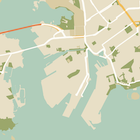



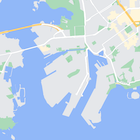
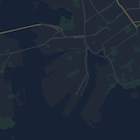
ใช้วิซาร์ดการจัดรูปแบบของ Maps Platform เป็นวิธีที่รวดเร็วในการสร้างออบเจ็กต์การจัดรูปแบบ JSON Maps SDK สำหรับ Android รองรับการประกาศสไตล์เดียวกันกับ Maps JavaScript API
ขั้นตอนถัดไป
ดูวิธีซ่อนองค์ประกอบในแผนที่ด้วยการจัดสไตล์