

Page Summary
-
Inline adaptive banners allow you to specify an ad width to determine the optimal size and maximize performance by optimizing ad size for each device.
-
Compared to anchored adaptive banners, inline adaptive banners are larger, taller, use variable heights, and are placed in scrolling content.
-
To implement inline adaptive banners, you get the device width (or set your own) and use a static method on the ad size class to get an inline adaptive ad size object for the chosen orientation.
-
Ad Manager reservation ad sizes can be served in the same ad slot as adaptive banner sized ads by setting the
adSizeto the adaptive size andvalidAdSizesto an array of supported reservation ad sizes. -
You can preload inline adaptive banners for a specific orientation or limit their height using dedicated methods.
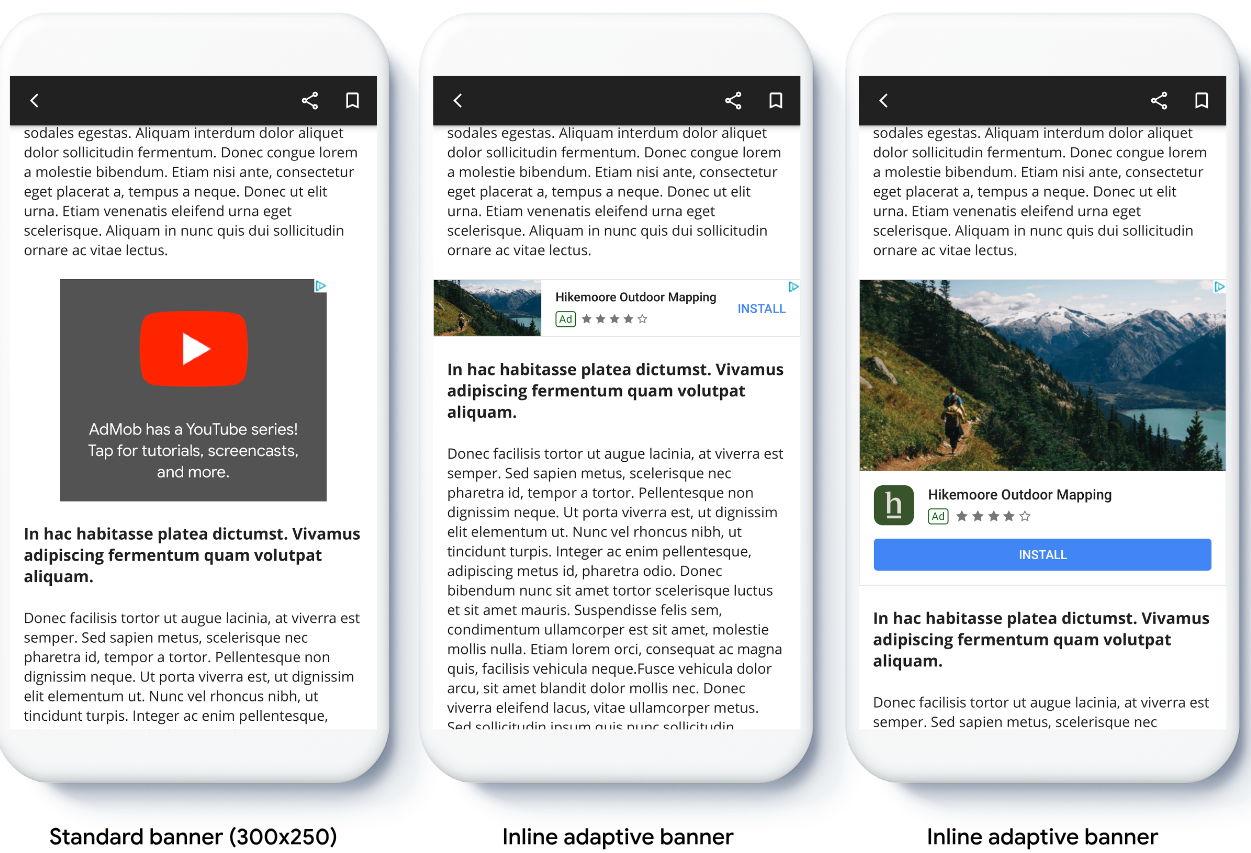
Adaptive banners let you specify the width of an ad to determine the optimal ad size for each device. Unlike anchored adaptive banners, inline adaptive banners are larger, taller, and don't use fixed heights. Inline adaptive banners have variable height. These banners might fill the entire screen or a maximum height you specify.
This guide covers creating inline adaptive banners and setting the banner size.
The following image shows inline adaptive banners in scrolling content:
Before you begin
Before continuing, make sure you set up banner ads.
To view a full inline adaptive banner example, download the following sample app:
Implement inline adaptive banners
To implement inline adaptive banners, you set the ad size, create an ad request, and load the ad.
To size an inline adaptive banner, determine the ad width. Common approaches include the following:
- Using the full-screen width.
- Using the width of the parent layout containing the ad.
- Adjusting the width to account for device safe areas.
When creating the ad size object, use this calculated width.
The following example creates an inline adaptive ad size using the device's safe area width:
Swift
// Make sure the ad fits inside the readable area.
let adWidth = view.bounds.inset(by: view.safeAreaInsets).width
bannerView.adSize = currentOrientationInlineAdaptiveBanner(width: adWidth)
Objective-C
// Make sure the ad fits inside the readable area.
CGFloat adWidth = CGRectGetWidth(UIEdgeInsetsInsetRect(view.bounds, view.safeAreaInsets));
bannerView.adSize = GADCurrentOrientationInlineAdaptiveBannerAdSizeWithWidth(adWidth);
Set an ad size smaller than or equal to the device screen size.
To determine the maximum screen size on iOS 26 and later, use the
UIWindowScene.effectiveGeometry.coordinateSpace
property. On iOS 18 and earlier, use the
UIWindowScene.coordinateSpace
property.
For details about size constraints, see
Troubleshoot unfilled impressions in Ad Manager.
If you need to update or create line items to use adaptive banners, see Set up line items for adaptive banners.
Set the inline adaptive banner layout
To preload an inline adaptive banner ad for a specific layout, use the following methods:
GADPortraitInlineAdaptiveBannerAdSizeWithWidth(CGFloat width)GADLandscapeInlineAdaptiveBannerAdSizeWithWidth(CGFloat width)
If your app supports portrait and landscape views, and you want to preload
an adaptive banner ad in the current layout, use the
GADCurrentOrientationInlineAdaptiveBannerAdSizeWithWidth(CGFloat width)
method.
This method loads an ad in the current layout.
Limit inline adaptive banner height
By default, inline adaptive banners created without a maxHeight value
have a maximum height equal to the device height. To limit the inline adaptive
banner height, use the
GADInlineAdaptiveBannerAdSizeWithWidthAndMaxHeight(CGFloat width, CGFloat maxHeight)
method.