

นอกจากรูปแบบเนทีฟที่ระบบกำหนดแล้ว ผู้เผยแพร่โฆษณา Ad Manager ยังมีตัวเลือกในการสร้างรูปแบบโฆษณาเนทีฟของตนเองโดยการกำหนดรายการชิ้นงานที่กำหนดเอง ซึ่งเรียกว่ารูปแบบโฆษณาเนทีฟที่กำหนดเอง และใช้กับโฆษณาแบบจองล่วงหน้าได้ ซึ่งช่วยให้ผู้เผยแพร่โฆษณาส่งข้อมูลที่มีโครงสร้างที่กำหนดเองไปยังแอปของตนได้ โฆษณาเหล่านี้จะแสดงด้วยออบเจ็กต์ NativeCustomFormatAd
โหลดรูปแบบโฆษณาเนทีฟที่กำหนดเอง
คู่มือนี้อธิบายวิธีโหลดและแสดงรูปแบบโฆษณาเนทีฟที่กำหนดเอง
โหลดโฆษณาเนทีฟที่กำหนดเอง
เช่นเดียวกับโฆษณาเนทีฟ รูปแบบโฆษณาเนทีฟที่กำหนดเองจะโหลดโดยใช้คลาส AdLoader ดังนี้
Java
AdLoader adLoader = new AdLoader.Builder(this, "/21775744923/example/native")
    .forCustomFormatAd("12387226",
        new NativeCustomFormatAd.OnCustomFormatAdLoadedListener() {
          @Override
          public void onCustomFormatAdLoaded(NativeCustomFormatAd ad) {
            // Show the custom format and record an impression.
          }
        },
        new NativeCustomFormatAd.OnCustomClickListener() {
          @Override
          public void onCustomClick(NativeCustomFormatAd ad, String s) {
            // Handle the click action
          }
        })
    .forCustomFormatAd("12406343",
        new NativeCustomFormatAd.OnCustomFormatAdLoadedListener() {
          @Override
          public void onCustomFormatAdLoaded(NativeCustomFormatAd ad) {
            // Show the custom format and record an impression.
          }
        },
        new NativeCustomFormatAd.OnCustomClickListener() {
          @Override
          public void onCustomClick(NativeCustomFormatAd ad, String s) {
            // Handle the click action
          }
        })
    .build();
Kotlin
val adLoader = AdLoader.Builder(this, "/21775744923/example/native")
  .forCustomFormatAd(
    "12387226",
    { customFormatAd ->
      // Show the custom format and record an impression.
    },
    { customFormatAd, s ->
      // Handle the click action
    })
  .forCustomFormatAd(
    "12406343",
    { customFormatAd ->
      // Show the custom format and record an impression.
    },
    { customFormatAd, s ->
      // Handle the click action
    })
  .build()
เมธอด forCustomFormatAd จะกำหนดค่า AdLoader เพื่อขอรูปแบบโฆษณาเนทีฟ
ที่กำหนดเอง คุณเรียกใช้เมธอดได้หลายครั้งสำหรับรหัสรูปแบบที่กำหนดเองที่แตกต่างกัน เมธอดนี้ยอมรับพารามิเตอร์ต่อไปนี้
- รหัสของรูปแบบโฆษณาเนทีฟที่กำหนดเองที่
AdLoaderควรขอ รูปแบบโฆษณาเนทีฟที่กำหนดเองแต่ละรูปแบบจะมีรหัสที่เชื่อมโยงอยู่ พารามิเตอร์นี้ระบุรูปแบบที่แอปต้องการให้AdLoaderขอ OnCustomFormatAdLoadedListenerที่จะเรียกใช้เมื่อโหลดโฆษณาสำเร็จOnCustomClickListenerที่ไม่บังคับซึ่งจะเรียกใช้เมื่อผู้ใช้แตะหรือคลิกโฆษณา ดูข้อมูลเพิ่มเติมเกี่ยวกับ Listener นี้ได้ที่ส่วน "การจัดการการคลิกและการแสดงผล"
เนื่องจากคุณสามารถตั้งค่าหน่วยโฆษณาเดียวให้แสดงครีเอทีฟโฆษณาได้มากกว่า 1 รูปแบบ จึงเรียกใช้ forCustomFormatAd ได้หลายครั้งโดยใช้รหัสรูปแบบที่ไม่ซ้ำกันเพื่อเตรียมเครื่องมือโหลดโฆษณาให้พร้อมสำหรับรูปแบบโฆษณาเนทีฟที่กำหนดเองซึ่งเป็นไปได้มากกว่า 1 รูปแบบ
รหัสรูปแบบโฆษณาเนทีฟที่กำหนดเอง
รหัสรูปแบบที่ใช้ระบุรูปแบบโฆษณาเนทีฟที่กำหนดเองจะอยู่ใน UI ของ Ad Manager ในส่วนเนทีฟภายในเมนูแบบเลื่อนลงการแสดงโฆษณา

รหัสรูปแบบโฆษณาเนทีฟที่กำหนดเองแต่ละรายการจะปรากฏข้างชื่อ การคลิกชื่อใดชื่อหนึ่งจะนำคุณไปยังหน้าจอรายละเอียดซึ่งแสดงข้อมูลเกี่ยวกับช่องของรูปแบบ ดังนี้
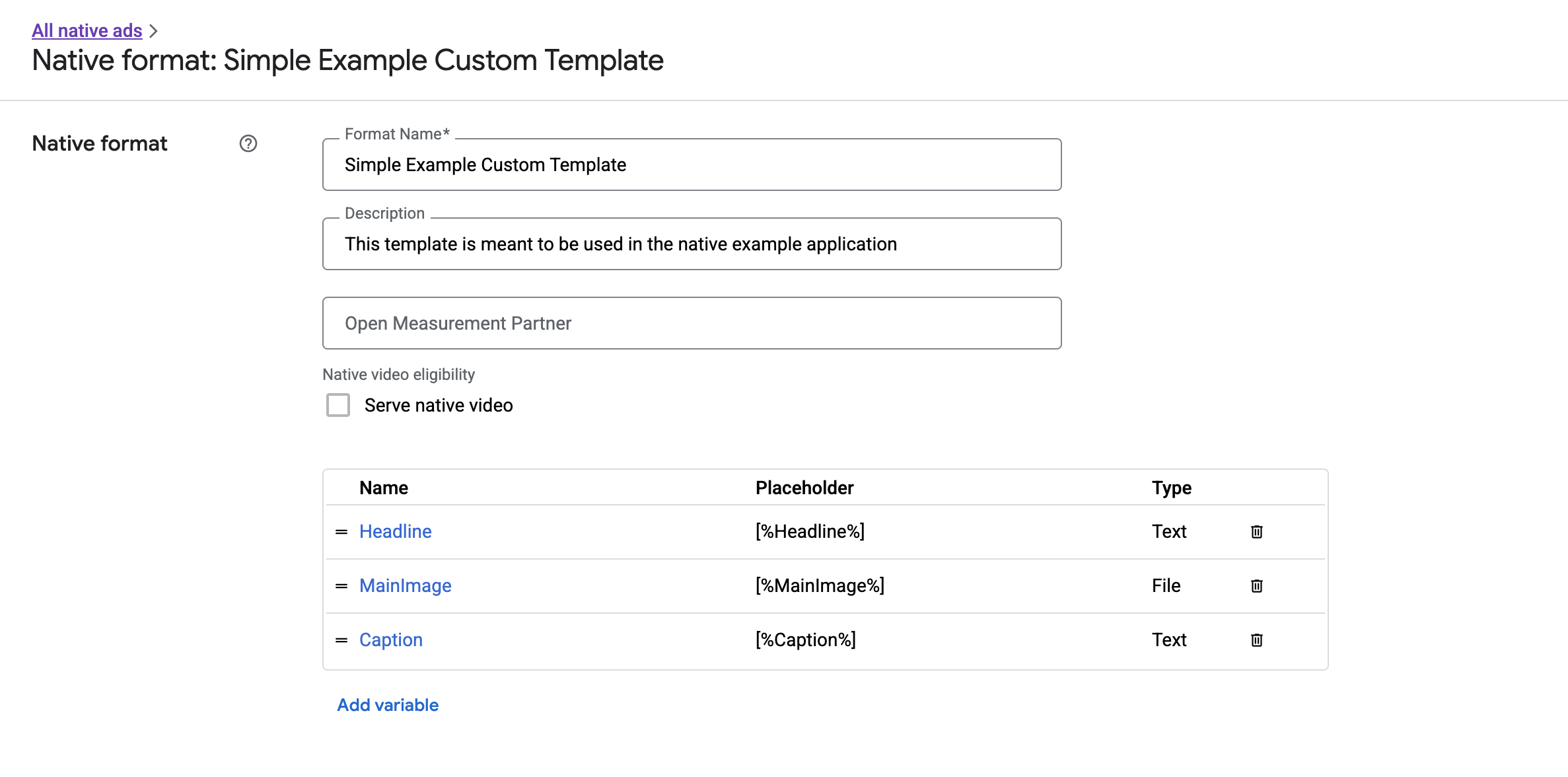
จากตรงนี้ คุณจะเพิ่ม แก้ไข และนำช่องแต่ละช่องออกได้ จดชื่อของชิ้นงานแต่ละรายการไว้ ชื่อคือคีย์ที่ใช้เพื่อรับข้อมูลของชิ้นงานแต่ละรายการเมื่อแสดงรูปแบบโฆษณาเนทีฟที่กำหนดเอง
แสดงรูปแบบโฆษณาเนทีฟที่กำหนดเอง
รูปแบบโฆษณาเนทีฟที่กำหนดเองแตกต่างจากรูปแบบที่ระบบกำหนดตรงที่ผู้เผยแพร่โฆษณาสามารถกำหนดรายการชิ้นงานของตนเองที่ประกอบกันเป็นโฆษณาได้ ดังนั้นกระบวนการแสดงโฆษณาจึงแตกต่างจากรูปแบบที่ระบบกำหนดในบางประการ ดังนี้
- ชิ้นงานข้อความและชิ้นงานรูปภาพพร้อมใช้งานผ่านเมธอด Getter
getText()และgetImage()ที่ใช้ชื่อฟิลด์เป็นพารามิเตอร์ - เนื่องจากไม่มีคลาส
ViewGroupโดยเฉพาะที่ต้องลงทะเบียนกับ Google คุณจึงต้องบันทึกการแสดงผลและการคลิกด้วยตนเอง - โฆษณาเนทีฟที่กำหนดเองจะมีเนื้อหาสื่อ
nullหากโฆษณาไม่มีชิ้นงานวิดีโอ
ตัวอย่างฟังก์ชันที่แสดง NativeCustomFormatAd มีดังนี้
Java
public void displayCustomFormatAd (ViewGroup parent,
                                     NativeCustomFormatAd customFormatAd) {
    // Inflate a layout and add it to the parent ViewGroup.
    LayoutInflater inflater = (LayoutInflater) parent.getContext()
            .getSystemService(Context.LAYOUT_INFLATER_SERVICE);
    View adView = inflater.inflate(R.layout.custom_format_ad, parent);

    // Locate the TextView that will hold the value for "Headline" and
    // set its text.
    TextView myHeadlineView = (TextView) adView.findViewById(R.id.headline);
    myHeadlineView.setText(customFormatAd.getText("Headline"));

    // Locate the ImageView that will hold the value for "MainImage" and
    // set its drawable.
    Button myMainImageView = (ImageView) adView.findViewById(R.id.main_image);
    myMainImageView.setImageDrawable(
            customFormatAd.getImage("MainImage").getDrawable());

    ...
    // Continue locating views and displaying assets until finished.
    ...
}
Kotlin
public fun displayCustomFormatAd (parent: ViewGroup,
                                customFormatAd: NativeCustomFormatAd) {
    val adView = layoutInflater
            .inflate(R.layout.ad_simple_custom_format, null)

    val myHeadlineView = adView.findViewById<TextView>(R.id.headline)
    myHeadlineView.setText(customFormatAd.getText("Headline"));

    // Locate the ImageView that will hold the value for "MainImage" and
    // set its drawable.
    val myMainImageView = adView.findViewById(R.id.main_image);
    myMainImageView.setImageDrawable(
            customFormatAd.getImage("MainImage").drawable);

    ...
    // Continue locating views and displaying assets until finished.
    ...
}
วิดีโอเนทีฟสำหรับรูปแบบโฆษณาเนทีฟที่กำหนดเอง
เมื่อสร้างรูปแบบที่กำหนดเอง คุณจะมีตัวเลือกในการทำให้รูปแบบนั้นมีสิทธิ์แสดงวิดีโอ
ในการติดตั้งใช้งานแอป คุณสามารถใช้ NativeCustomFormatAd.getMediaContent() เพื่อรับเนื้อหาสื่อได้ จากนั้นเรียกใช้ setMediaContent() เพื่อตั้งค่าเนื้อหาสื่อในมุมมองสื่อ
หากโฆษณามีเนื้อหาสื่อ null ให้วางแผนสำรองเพื่อแสดงโฆษณาโดยไม่มีวิดีโอ
ตัวอย่างต่อไปนี้จะตรวจสอบว่าโฆษณามีเนื้อหาวิดีโอหรือไม่ และแสดงรูปภาพแทนหากไม่มีวิดีโอ
Java
// Called when a custom native ad loads.
@Override
public void onCustomFormatAdLoaded(final NativeCustomFormatAd ad) {

  MediaContent mediaContent = ad.getMediaContent();

  // Assumes you have a FrameLayout in your view hierarchy with the ID media_placeholder.
  FrameLayout mediaPlaceholder = (FrameLayout) findViewById(R.id.media_placeholder);

  // Apps can check the MediaContent's hasVideoContent property to determine if the
  // NativeCustomFormatAd has a video asset.
  if (mediaContent != null && mediaContent.hasVideoContent()) {
    MediaView mediaView = new MediaView(mediaPlaceholder.getContext());
    mediaView.setMediaContent(mediaContent);
    mediaPlaceholder.addView(mediaView);

    // Create a new VideoLifecycleCallbacks object and pass it to the VideoController. The
    // VideoController will call methods on this object when events occur in the video
    // lifecycle.
    VideoController vc = mediaContent.getVideoController();
    vc.setVideoLifecycleCallbacks(
        new VideoController.VideoLifecycleCallbacks() {
          @Override
          public void onVideoEnd() {
            // Publishers should allow native ads to complete video playback before
            // refreshing or replacing them with another ad in the same UI location.
            super.onVideoEnd();
          }
        });
  } else {
    ImageView mainImage = new ImageView(this);
    mainImage.setAdjustViewBounds(true);
    mainImage.setImageDrawable(ad.getImage("MainImage").getDrawable());
    mediaPlaceholder.addView(mainImage);
    mainImage.setOnClickListener(
        new View.OnClickListener() {
          @Override
          public void onClick(View view) {
            ad.performClick("MainImage");
          }
        });
  }
}
Kotlin
// Called when a custom native ad loads.
NativeCustomFormatAd.OnCustomFormatAdLoadedListener { ad ->

  val mediaContent = ad.mediaContent

  // Apps can check the MediaContent's hasVideoContent property to determine if the
  // NativeCustomFormatAd has a video asset.
  if (mediaContent != null && mediaContent.hasVideoContent()) {
    val mediaView = MediaView(mediaPlaceholder.getContest())
    mediaView.mediaContent = mediaContent

    val videoController = mediaContent.videoController

    // Create a new VideoLifecycleCallbacks object and pass it to the VideoController. The
    // VideoController will call methods on this object when events occur in the video
    // lifecycle.
    if (videoController != null) {
      videoController.videoLifecycleCallbacks =
        object : VideoController.VideoLifecycleCallbacks() {
          override fun onVideoEnd() {
            // Publishers should allow native ads to complete video playback before refreshing
            // or replacing them with another ad in the same UI location.
            super.onVideoEnd()
          }
        }
    }
  } else {
    val mainImage = ImageView(this)
    mainImage.adjustViewBounds = true
    mainImage.setImageDrawable(ad.getImage("MainImage")?.drawable)

    mainImage.setOnClickListener { ad.performClick("MainImage") }
    customTemplateBinding.simplecustomMediaPlaceholder.addView(mainImage)
  }
}
ดาวน์โหลดตัวอย่างการแสดงผลที่กำหนดเองของ Ad Manager เพื่อดูตัวอย่างการทำงานของวิดีโอเนทีฟ
ดูข้อมูลเพิ่มเติมเกี่ยวกับวิธีปรับแต่งประสบการณ์การใช้งานวิดีโอของโฆษณาเนทีฟที่กำหนดเองได้ที่โฆษณาวิดีโอ
แสดงผลไอคอนตัวเลือกโฆษณาอื่นๆ
ในฐานะส่วนหนึ่งของการสนับสนุนกฎหมายบริการดิจิทัล (DSA) โฆษณาแบบจองล่วงหน้าที่แสดงในเขตเศรษฐกิจยุโรป (EEA) ต้องมีไอคอนตัวเลือกโฆษณาอื่นๆ และลิงก์ไปยังหน้า "เกี่ยวกับโฆษณานี้" ของ Google เมื่อติดตั้งใช้งานโฆษณาเนทีฟที่กำหนดเอง คุณจะเป็นผู้รับผิดชอบในการแสดงผลไอคอนตัวเลือกโฆษณาอื่นๆ เราขอแนะนำให้คุณทำตามขั้นตอนเพื่อแสดงผลและตั้งค่าฟังก์ชันรอคลิกสำหรับไอคอนตัวเลือกโฆษณาอื่นๆ เมื่อแสดงผลชิ้นงานโฆษณาหลัก
ตัวอย่างต่อไปนี้ถือว่าคุณได้กำหนดองค์ประกอบ <ImageView /> ในลำดับชั้นการแสดงผลเพื่อเก็บโลโก้ตัวเลือกโฆษณาอื่นๆ ไว้แล้ว
<LinearLayout xmlns:android="http://schemas.android.com/apk/res/android">
    <ImageView
        android:id="@+id/adChoices"
        android:layout_width="15dp"
        android:layout_height="15dp"
        android:adjustViewBounds="true"
        android:contentDescription="AdChoices icon." />
</LinearLayout>
ตัวอย่างต่อไปนี้จะแสดงผลไอคอนตัวเลือกโฆษณาอื่นๆ และกำหนดค่าลักษณะการคลิกที่เหมาะสม
Java
private AdSimpleCustomTemplateBinding customTemplateBinding;

private void populateAdView(final NativeCustomFormatAd nativeCustomFormatAd) {
  // Render the AdChoices icon.
  String adChoicesKey = NativeAdAssetNames.ASSET_ADCHOICES_CONTAINER_VIEW;
  NativeAd.Image adChoicesAsset = nativeCustomFormatAd.getImage(adChoicesKey);
  if (adChoicesAsset == null) {
    customTemplateBinding.adChoices.setVisibility(View.GONE);
  } else {
    customTemplateBinding.adChoices.setVisibility(View.VISIBLE);
    customTemplateBinding.adChoices.setImageDrawable(adChoicesAsset.getDrawable());

    // Enable clicks on AdChoices.
    customTemplateBinding.adChoices.setOnClickListener(
        new View.OnClickListener() {
          @Override
          public void onClick(View v) {
            nativeCustomFormatAd.performClick(adChoicesKey);
          }
        });
  }
  ...
}
Kotlin
private lateinit var customTemplateBinding: AdSimpleCustomTemplateBinding

private fun populateAdView(nativeCustomFormatAd: NativeCustomFormatAd) {
  // Render the AdChoices icon.
  val adChoicesKey = NativeAdAssetNames.ASSET_ADCHOICES_CONTAINER_VIEW
  val adChoicesAsset = nativeCustomFormatAd.getImage(adChoicesKey)
  if (adChoicesAsset == null) {
    customTemplateBinding.adChoices.visibility = View.GONE
  } else {
    customTemplateBinding.adChoices.setImageDrawable(adChoicesAsset.drawable)
    customTemplateBinding.adChoices.visibility = View.VISIBLE

    // Enable clicks on AdChoices.
    customTemplateBinding.adChoices.setOnClickListener {
      nativeCustomFormatAd.performClick(adChoicesKey)
    }
  }
  ...
}
บันทึกการแสดงผลและรายงานการคลิก
แอปของคุณมีหน้าที่รับผิดชอบในการบันทึกการแสดงผลและรายงานกิจกรรมการคลิกไปยัง Google Mobile Ads SDK (Legacy)
การแสดงผลของแผ่นเสียง
หากต้องการบันทึกการแสดงผลสำหรับโฆษณาเนทีฟที่กำหนดเอง ให้เรียกใช้เมธอด recordImpression() ของโฆษณา
myCustomFormatAd.recordImpression();
หากแอปเรียกใช้เมธอด 2 ครั้งโดยไม่ตั้งใจสำหรับโฆษณาเดียวกัน SDK จะป้องกันไม่ให้ระบบบันทึกการแสดงผลที่ซ้ำกันสำหรับคำขอเดียวโดยอัตโนมัติ
การคลิกรายงาน
หากต้องการรายงานไปยัง SDK ว่ามีการคลิกเกิดขึ้นในมุมมองชิ้นงาน ให้เรียกใช้เมธอด performClick() ของโฆษณา ระบุชื่อของชิ้นงานที่มีการคลิกโดยใช้สตริงเดียวกับที่คุณกำหนดไว้ใน UI ของ Ad Manager
myCustomFormatAd.performClick("MainImage");
โปรดทราบว่าคุณไม่จำเป็นต้องเรียกใช้เมธอดนี้สำหรับทุกการดูที่เชื่อมโยงกับโฆษณา หากคุณมีช่องอื่นชื่อ "คำอธิบายภาพ" ซึ่งมีไว้เพื่อแสดงแต่ผู้ใช้ไม่ได้คลิกหรือแตะ แอปของคุณก็ไม่จำเป็นต้องเรียกใช้ performClick สำหรับการดูชิ้นงานนั้น
ตอบสนองต่อการดำเนินการคลิกที่กำหนดเอง
เมื่อมีการคลิกโฆษณารูปแบบที่กำหนดเอง SDK จะตอบสนองได้ 3 วิธี โดยจะพยายามดำเนินการตามลำดับต่อไปนี้
- เรียกใช้
OnCustomClickListenerหากมี - สำหรับ URL ของ Deep Link แต่ละรายการของโฆษณา ให้พยายามค้นหา Content Resolver และเริ่มรายการแรกที่แก้ไขได้
- เปิดเบราว์เซอร์และไปที่ URL ปลายทางของโฆษณา
หากต้องการใช้การดำเนินการคลิกที่กำหนดเอง ให้ระบุ OnCustomClickListener ดังนี้
Java
AdLoader adLoader = new AdLoader.Builder(context, "/21775744923/example/native")
    .forCustomFormatAd("10063170",
      new NativeCustomFormatAd.OnCustomFormatAdLoadedListener() {
        // Display the ad.
      },
      new NativeCustomFormatAd.OnCustomClickListener() {
          @Override
          public void onCustomClick(NativeCustomFormatAd ad, String assetName) {
            Log.i("MyApp", "A custom click just happened for " + assetName + "!");
          }
      }).build();
Kotlin
val adLoader = AdLoader.Builder(this, "/21775744923/example/native")
    .forCustomFormatAd("10063170",
        { ad ->
            // Display the ad.
        },
        { ad, assetName ->
                Log.i("MyApp", "A custom click just happened for $assetName!")
    }).build()
ในตอนแรก คุณอาจรู้สึกแปลกใจที่มีฟังก์ชันรอคลิกที่กำหนดเอง ท้ายที่สุดแล้ว แอปเพิ่งบอก SDK ว่ามีการคลิกเกิดขึ้น ดังนั้น SDK จึงควรรายงานเรื่องนี้กลับไปยังแอป
การไหลของข้อมูลนี้มีประโยชน์หลายประการ แต่ที่สำคัญที่สุดคือช่วยให้ SDK ยังคงควบคุมการตอบสนองต่อการคลิกได้ เช่น สามารถส่งคําสั่ง ping ไปยัง URL ติดตามของบุคคลที่สามที่ตั้งค่าไว้สําหรับครีเอทีฟโฆษณาโดยอัตโนมัติ และจัดการงานอื่นๆ เบื้องหลังโดยไม่ต้องใช้โค้ดเพิ่มเติม