

แสดงรูปแบบโฆษณาเนทีฟที่ระบบกำหนด
เมื่อโฆษณาเนทีฟโหลด แอปจะได้รับออบเจ็กต์โฆษณาเนทีฟโดยใช้ข้อความโปรโตคอล GADAdLoaderDelegate ข้อความใดข้อความหนึ่งต่อไปนี้ จากนั้นแอปของคุณจะมีหน้าที่
แสดงโฆษณา (แม้ว่าจะไม่จำเป็นต้องแสดงทันทีก็ตาม)
SDK มีแหล่งข้อมูลที่เป็นประโยชน์บางอย่างเพื่อช่วยให้การแสดงรูปแบบโฆษณาที่ระบบกำหนดง่ายขึ้น
GADNativeAdView
สำหรับ GADNativeAd จะมีคลาส "มุมมองโฆษณา" ที่เกี่ยวข้อง
ดังนี้
GADNativeAdView
คลาสมุมมองโฆษณานี้คือ UIView ที่ผู้เผยแพร่โฆษณาควรใช้เพื่อแสดงโฆษณา
เช่น GADNativeAdView รายการเดียวสามารถแสดงอินสแตนซ์เดียวของ GADNativeAd ได้ ออบเจ็กต์ UIView แต่ละรายการที่ใช้แสดงชิ้นงานของโฆษณานั้น
ควรเป็นมุมมองย่อยของออบเจ็กต์ GADNativeAdView นั้น
ตัวอย่างเช่น หากคุณแสดงโฆษณาใน UITableView ลำดับชั้นการแสดงผลของเซลล์หนึ่งอาจมีลักษณะดังนี้
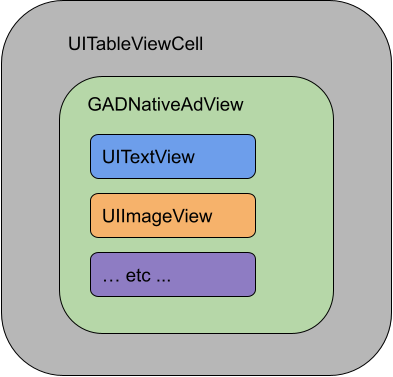
คลาส GADNativeAdView ยังมี IBOutlets ที่ใช้ในการลงทะเบียนมุมมองที่ใช้สำหรับชิ้นงานแต่ละรายการ และเมธอดในการลงทะเบียนออบเจ็กต์ GADNativeAd ด้วย การลงทะเบียนมุมมองด้วยวิธีนี้ช่วยให้ SDK จัดการงานต่างๆ ได้โดยอัตโนมัติ เช่น
- การบันทึกการคลิก
- การบันทึกการแสดงผล (เมื่อพิกเซลแรกปรากฏบนหน้าจอ)
- การแสดงการวางซ้อนตัวเลือกโฆษณาอื่นๆ
การวางซ้อน "ตัวเลือกโฆษณาอื่นๆ"
สำหรับโฆษณาเนทีฟทางอ้อม (แสดงผ่านโฆษณาทดแทนของ Ad Manager หรือผ่าน Ad Exchange หรือ AdSense) SDK จะเพิ่มการวางซ้อนตัวเลือกโฆษณาอื่นๆ เว้นพื้นที่ว่างไว้ที่มุมที่ต้องการในมุมมองโฆษณาเนทีฟสำหรับโลโก้ตัวเลือกโฆษณาอื่นๆ ที่แทรกโดยอัตโนมัติ นอกจากนี้ โปรดตรวจสอบว่าการวางซ้อนตัวเลือกโฆษณาอื่นๆ อยู่บนเนื้อหาที่ทำให้มองเห็นไอคอนได้อย่างชัดเจน ดูข้อมูลเพิ่มเติมเกี่ยวกับลักษณะและการทำงานของภาพซ้อนทับได้ที่หลักเกณฑ์การติดตั้งใช้งานโฆษณาเนทีฟแบบเป็นโปรแกรม
การระบุว่าเป็นโฆษณาสำหรับโฆษณาเนทีฟแบบเป็นโปรแกรม
เมื่อแสดงโฆษณาเนทีฟแบบเป็นโปรแกรม คุณต้องแสดงการระบุว่าเป็นโฆษณาเพื่อระบุว่ามุมมองนั้นเป็นโฆษณา ดูข้อมูลเพิ่มเติมในหลักเกณฑ์ด้านนโยบายตัวอย่างโค้ด
ส่วนนี้แสดงวิธีแสดงโฆษณาเนทีฟโดยใช้มุมมองที่โหลดแบบไดนามิกจากไฟล์ xib วิธีนี้อาจเป็นประโยชน์อย่างมากเมื่อใช้ GADAdLoaders ที่กำหนดค่าให้ขอหลายรูปแบบ
จัดวาง UIView
ขั้นตอนแรกคือการจัดวาง UIViews ที่จะแสดงชิ้นงานโฆษณาเนทีฟ
คุณสามารถทำได้ใน Interface Builder เช่นเดียวกับเมื่อสร้างไฟล์ xib อื่นๆ เลย์เอาต์ของโฆษณาเนทีฟอาจมีลักษณะดังนี้
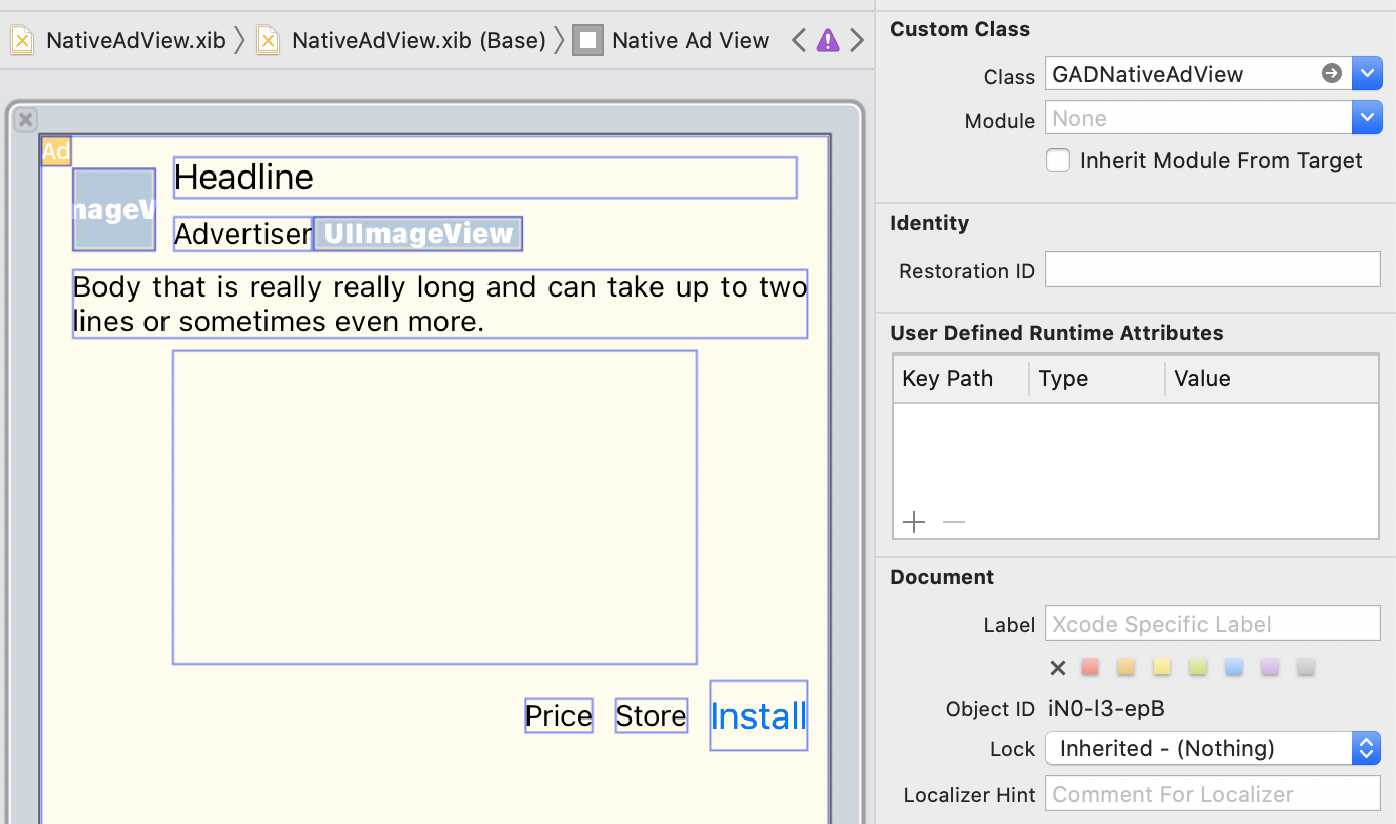
โปรดสังเกตค่าคลาสที่กำหนดเองที่ด้านขวาบนของรูปภาพ ตั้งไว้ที่
GADNativeAdView
คลาสมุมมองโฆษณานี้ใช้เพื่อแสดง GADNativeAd
นอกจากนี้ คุณยังต้องตั้งค่าคลาสที่กำหนดเองสำหรับ GADMediaView ซึ่งใช้เพื่อแสดงวิดีโอหรือรูปภาพสำหรับโฆษณาด้วย
ลิงก์ร้านค้ากับมุมมอง
เมื่อมีมุมมองและคุณได้กําหนดคลาสมุมมองโฆษณาที่ถูกต้องให้กับเลย์เอาต์แล้ว ให้ลิงก์เอาต์เล็ตชิ้นงานของมุมมองโฆษณากับ UIViews ที่คุณสร้างขึ้น
วิธีลิงก์เอาต์เล็ตชิ้นงานของมุมมองโฆษณากับ UIViews ที่สร้างขึ้น
สำหรับโฆษณา:
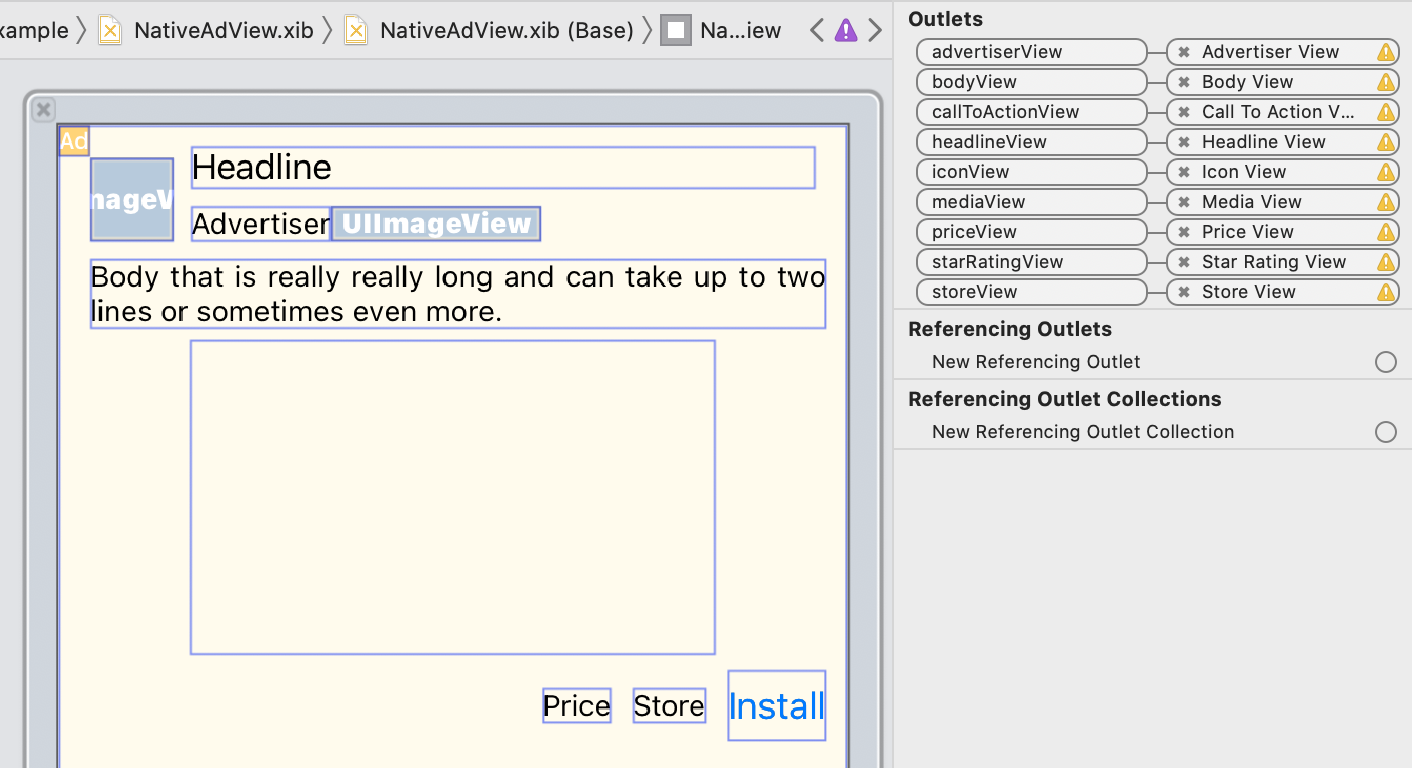
ในแผงเอาต์เล็ตนั้น เอาต์เล็ตใน GADNativeAdView จะลิงก์กับ
UIViews ที่วางไว้ใน Interface Builder ซึ่งจะช่วยให้ SDK ทราบว่า UIView ใดแสดงชิ้นงานใด
นอกจากนี้ โปรดทราบว่าแหล่งที่มาเหล่านี้แสดงถึงมุมมองที่
คลิกได้ในโฆษณา
แสดงโฆษณา
หลังจากเลย์เอาต์เสร็จสมบูรณ์และลิงก์ Outlet แล้ว ให้เพิ่มโค้ดต่อไปนี้ลงในแอปที่แสดงโฆษณาเมื่อโหลดแล้ว
Swift
func adLoader(_ adLoader: AdLoader, didReceive nativeAd: NativeAd) {
// ...
// Set ourselves as the native ad delegate to be notified of native ad events.
nativeAd.delegate = self
// Populate the native ad view with the native ad assets.
// The headline and mediaContent are guaranteed to be present in every native ad.
(nativeAdView.headlineView as? UILabel)?.text = nativeAd.headline
nativeAdView.mediaView?.mediaContent = nativeAd.mediaContent
// Some native ads will include a video asset, while others do not. Apps can use the
// GADVideoController's hasVideoContent property to determine if one is present, and adjust their
// UI accordingly.
let mediaContent = nativeAd.mediaContent
if mediaContent.hasVideoContent {
// By acting as the delegate to the GADVideoController, this ViewController receives messages
// about events in the video lifecycle.
mediaContent.videoController.delegate = self
videoStatusLabel.text = "Ad contains a video asset."
} else {
videoStatusLabel.text = "Ad does not contain a video."
}
// This app uses a fixed width for the GADMediaView and changes its height to match the aspect
// ratio of the media it displays.
if let mediaView = nativeAdView.mediaView, nativeAd.mediaContent.aspectRatio > 0 {
let aspectRatioConstraint = NSLayoutConstraint(
item: mediaView,
attribute: .width,
relatedBy: .equal,
toItem: mediaView,
attribute: .height,
multiplier: CGFloat(nativeAd.mediaContent.aspectRatio),
constant: 0)
mediaView.addConstraint(aspectRatioConstraint)
nativeAdView.layoutIfNeeded()
}
// These assets are not guaranteed to be present. Check that they are before
// showing or hiding them.
(nativeAdView.bodyView as? UILabel)?.text = nativeAd.body
nativeAdView.bodyView?.isHidden = nativeAd.body == nil
(nativeAdView.callToActionView as? UIButton)?.setTitle(nativeAd.callToAction, for: .normal)
nativeAdView.callToActionView?.isHidden = nativeAd.callToAction == nil
(nativeAdView.iconView as? UIImageView)?.image = nativeAd.icon?.image
nativeAdView.iconView?.isHidden = nativeAd.icon == nil
(nativeAdView.starRatingView as? UIImageView)?.image = imageOfStars(from: nativeAd.starRating)
nativeAdView.starRatingView?.isHidden = nativeAd.starRating == nil
(nativeAdView.storeView as? UILabel)?.text = nativeAd.store
nativeAdView.storeView?.isHidden = nativeAd.store == nil
(nativeAdView.priceView as? UILabel)?.text = nativeAd.price
nativeAdView.priceView?.isHidden = nativeAd.price == nil
(nativeAdView.advertiserView as? UILabel)?.text = nativeAd.advertiser
nativeAdView.advertiserView?.isHidden = nativeAd.advertiser == nil
// In order for the SDK to process touch events properly, user interaction should be disabled.
nativeAdView.callToActionView?.isUserInteractionEnabled = false
// Associate the native ad view with the native ad object. This is
// required to make the ad clickable.
// Note: this should always be done after populating the ad views.
nativeAdView.nativeAd = nativeAd
}
SwiftUI
สร้างโมเดลมุมมอง
สร้างโมเดลมุมมองที่โหลดโฆษณาเนทีฟ และเผยแพร่การเปลี่ยนแปลงข้อมูลในบริบทโฆษณาเนทีฟ
import GoogleMobileAds
class NativeAdViewModel: NSObject, ObservableObject, NativeAdLoaderDelegate {
@Published var nativeAd: NativeAd?
private var adLoader: AdLoader!
func refreshAd() {
adLoader = AdLoader(
adUnitID: "ca-app-pub-3940256099942544/3986624511",
// The UIViewController parameter is optional.
rootViewController: nil,
adTypes: [.native], options: nil)
adLoader.delegate = self
adLoader.load(Request())
}
func adLoader(_ adLoader: AdLoader, didReceive nativeAd: NativeAd) {
// Native ad data changes are published to its subscribers.
self.nativeAd = nativeAd
nativeAd.delegate = self
}
func adLoader(_ adLoader: AdLoader, didFailToReceiveAdWithError error: Error) {
print("\(adLoader) failed with error: \(error.localizedDescription)")
}
}
สร้าง UIViewRepresentable
สร้าง UIViewRepresentable สำหรับ NativeView และสมัครรับข้อมูลการเปลี่ยนแปลงข้อมูลในคลาส ViewModel ดังนี้
private struct NativeAdViewContainer: UIViewRepresentable {
typealias UIViewType = NativeAdView
// Observer to update the UIView when the native ad value changes.
@ObservedObject var nativeViewModel: NativeAdViewModel
func makeUIView(context: Context) -> NativeAdView {
return
Bundle.main.loadNibNamed(
"NativeAdView",
owner: nil,
options: nil)?.first as! NativeAdView
}
func updateUIView(_ nativeAdView: NativeAdView, context: Context) {
guard let nativeAd = nativeViewModel.nativeAd else { return }
// Each UI property is configurable using your native ad.
(nativeAdView.headlineView as? UILabel)?.text = nativeAd.headline
nativeAdView.mediaView?.mediaContent = nativeAd.mediaContent
(nativeAdView.bodyView as? UILabel)?.text = nativeAd.body
(nativeAdView.iconView as? UIImageView)?.image = nativeAd.icon?.image
(nativeAdView.starRatingView as? UIImageView)?.image = imageOfStars(from: nativeAd.starRating)
(nativeAdView.storeView as? UILabel)?.text = nativeAd.store
(nativeAdView.priceView as? UILabel)?.text = nativeAd.price
(nativeAdView.advertiserView as? UILabel)?.text = nativeAd.advertiser
(nativeAdView.callToActionView as? UIButton)?.setTitle(nativeAd.callToAction, for: .normal)
// For the SDK to process touch events properly, user interaction should be disabled.
nativeAdView.callToActionView?.isUserInteractionEnabled = false
// Associate the native ad view with the native ad object. This is required to make the ad
// clickable.
// Note: this should always be done after populating the ad views.
nativeAdView.nativeAd = nativeAd
}
เพิ่มมุมมองลงในลำดับชั้นการแสดงผล
โค้ดต่อไปนี้แสดงการเพิ่ม UIViewRepresentable ลงในลำดับชั้นการแสดงผล
struct NativeContentView: View {
// Single source of truth for the native ad data.
@StateObject private var nativeViewModel = NativeAdViewModel()
var body: some View {
ScrollView {
VStack(spacing: 20) {
// Updates when the native ad data changes.
NativeAdViewContainer(nativeViewModel: nativeViewModel)
.frame(minHeight: 300) // minHeight determined from xib.
Objective-C
- (void)adLoader:(GADAdLoader *)adLoader didReceiveNativeAd:(GADNativeAd *)nativeAd {
// ...
GADNativeAdView *nativeAdView = self.nativeAdView;
// Set ourselves as the ad delegate to be notified of native ad events.
nativeAd.delegate = self;
// Populate the native ad view with the native ad assets.
// The headline and mediaContent are guaranteed to be present in every native ad.
((UILabel *)nativeAdView.headlineView).text = nativeAd.headline;
nativeAdView.mediaView.mediaContent = nativeAd.mediaContent;
// This app uses a fixed width for the GADMediaView and changes its height
// to match the aspect ratio of the media content it displays.
if (nativeAdView.mediaView != nil && nativeAd.mediaContent.aspectRatio > 0) {
NSLayoutConstraint *aspectRatioConstraint =
[NSLayoutConstraint constraintWithItem:nativeAdView.mediaView
attribute:NSLayoutAttributeWidth
relatedBy:NSLayoutRelationEqual
toItem:nativeAdView.mediaView
attribute:NSLayoutAttributeHeight
multiplier:(nativeAd.mediaContent.aspectRatio)
constant:0];
[nativeAdView.mediaView addConstraint:aspectRatioConstraint];
[nativeAdView layoutIfNeeded];
}
if (nativeAd.mediaContent.hasVideoContent) {
// By acting as the delegate to the GADVideoController, this ViewController
// receives messages about events in the video lifecycle.
nativeAd.mediaContent.videoController.delegate = self;
self.videoStatusLabel.text = @"Ad contains a video asset.";
} else {
self.videoStatusLabel.text = @"Ad does not contain a video.";
}
// These assets are not guaranteed to be present. Check that they are before
// showing or hiding them.
((UILabel *)nativeAdView.bodyView).text = nativeAd.body;
nativeAdView.bodyView.hidden = nativeAd.body ? NO : YES;
[((UIButton *)nativeAdView.callToActionView) setTitle:nativeAd.callToAction
forState:UIControlStateNormal];
nativeAdView.callToActionView.hidden = nativeAd.callToAction ? NO : YES;
((UIImageView *)nativeAdView.iconView).image = nativeAd.icon.image;
nativeAdView.iconView.hidden = nativeAd.icon ? NO : YES;
((UIImageView *)nativeAdView.starRatingView).image = [self imageForStars:nativeAd.starRating];
nativeAdView.starRatingView.hidden = nativeAd.starRating ? NO : YES;
((UILabel *)nativeAdView.storeView).text = nativeAd.store;
nativeAdView.storeView.hidden = nativeAd.store ? NO : YES;
((UILabel *)nativeAdView.priceView).text = nativeAd.price;
nativeAdView.priceView.hidden = nativeAd.price ? NO : YES;
((UILabel *)nativeAdView.advertiserView).text = nativeAd.advertiser;
nativeAdView.advertiserView.hidden = nativeAd.advertiser ? NO : YES;
// In order for the SDK to process touch events properly, user interaction
// should be disabled.
nativeAdView.callToActionView.userInteractionEnabled = NO;
// Associate the native ad view with the native ad object. This is
// required to make the ad clickable.
// Note: this should always be done after populating the ad views.
nativeAdView.nativeAd = nativeAd;
}
ตัวอย่างที่เสร็จสมบูรณ์ใน GitHub
ดูตัวอย่างที่เสร็จสมบูรณ์ของการผสานรวมโฆษณาเนทีฟใน Swift, SwiftUI และ Objective-C โดยไปที่ลิงก์ GitHub ที่เกี่ยวข้อง
ตัวอย่างการแสดงผลที่กำหนดเองของ Swift ตัวอย่างโฆษณาเนทีฟของ SwiftUI ตัวอย่างการแสดงผลที่กำหนดเองของ Objective-C
GADMediaView
ชิ้นงานรูปภาพและวิดีโอจะแสดงต่อผู้ใช้ที่ใช้ GADMediaView
นี่คือ UIView ที่สามารถกำหนดได้ในไฟล์ xib หรือสร้างขึ้นแบบไดนามิก
โดยควรวางไว้ภายในลำดับชั้นการแสดงผลของ GADNativeAdView เช่นเดียวกับมุมมองชิ้นงานอื่นๆ
เช่นเดียวกับมุมมองชิ้นงานทั้งหมด มุมมองสื่อต้องมีเนื้อหาที่สร้างขึ้น ซึ่งตั้งค่าโดยใช้พร็อพเพอร์ตี้ mediaContent ใน GADMediaView พร็อพเพอร์ตี้ mediaContent ของ GADNativeAd มีเนื้อหาสื่อที่ส่งไปยัง GADMediaView ได้
ต่อไปนี้คือข้อมูลโค้ดจากตัวอย่างการแสดงผลที่กำหนดเอง (Swift | Objective-C) ที่แสดงวิธีป้อนข้อมูล GADMediaView ด้วยชิ้นงานโฆษณาเนทีฟโดยใช้ GADMediaContent จาก GADNativeAd
Swift
nativeAdView.mediaView?.mediaContent = nativeAd.mediaContent
Objective-C
nativeAdView.mediaView.mediaContent = nativeAd.mediaContent;
ตรวจสอบว่าในไฟล์เครื่องมือสร้างอินเทอร์เฟซสำหรับมุมมองโฆษณาเนทีฟ คุณได้ตั้งค่าคลาสที่กำหนดเองของมุมมองเป็น GADMediaView และเชื่อมต่อกับ Outlet mediaView แล้ว
เปลี่ยนโหมดเนื้อหารูปภาพ
คลาส GADMediaView จะพิจารณาพร็อพเพอร์ตี้ UIView
contentMode
เมื่อแสดงรูปภาพ หากต้องการเปลี่ยนวิธีปรับขนาดรูปภาพใน
GADMediaView ให้ตั้งค่า UIViewContentMode
ที่เกี่ยวข้องในพร็อพเพอร์ตี้ contentMode ของ GADMediaView เพื่อให้ได้ผลลัพธ์นี้
เช่น หากต้องการเติม GADMediaView เมื่อแสดงรูปภาพ (โฆษณาไม่มีวิดีโอ) ให้ทำดังนี้
Swift
nativeAdView.mediaView?.contentMode = .scaleAspectFit
Objective-C
nativeAdView.mediaView.contentMode = UIViewContentModeScaleAspectFit;
GADMediaContent
คลาส GADMediaContent จะเก็บข้อมูลที่เกี่ยวข้องกับเนื้อหาสื่อของโฆษณาเนทีฟ ซึ่งแสดงโดยใช้คลาส GADMediaView เมื่อตั้งค่าในพร็อพเพอร์ตี้ GADMediaView
mediaContent:
หากมีชิ้นงานวิดีโอ ระบบจะบัฟเฟอร์และเริ่มเล่นภายใน
GADMediaViewคุณสามารถดูว่าชิ้นงานวิดีโอพร้อมใช้งานหรือไม่โดยตรวจสอบhasVideoContentหากโฆษณาไม่มีชิ้นงานวิดีโอ ระบบจะดาวน์โหลด
mainImageและวางไว้ในGADMediaViewแทน
ขั้นตอนถัดไป
ดูข้อมูลเพิ่มเติมเกี่ยวกับความเป็นส่วนตัวของผู้ใช้