
自訂廣告格式
自訂原生廣告格式與系統定義的格式類似,都是透過 GADAdLoader 物件載入。只要在初始化 GADAdLoader 時,將 GADAdLoaderAdTypeCustomNative 常數加入 adTypes 陣列,該物件載入廣告時,即會請求自訂原生格式。
GADCustomNativeAdLoaderDelegate
載入自訂格式的協定包含兩個方法,第一個方法可讓 GADAdLoader 確認要請求哪些格式 ID。
Swift
public func customNativeAdFormatIDs(for adLoader: AdLoader) -> [Any]
Objective-C
- (NSArray *)customNativeAdFormatIDsForAdLoader:(AdLoader *)adLoader;
每個自訂原生廣告格式都有一個格式 ID,方便用來辨識。呼叫這個方法時,您的應用程式應該傳回一個陣列,裡面包含準備顯示的廣告格式 ID。
第二個訊息則在自訂原生廣告載入完成後發送,方式與系統定義格式的廣告類似:
Swift
public func adLoader(_ adLoader: AdLoader,
    didReceive customNativeAd: CustomNativeAd)
Objective-C
- (void)adLoader:(AdLoader *)adLoader
    didReceiveCustomNativeAd:(CustomNativeAd *)customNativeAd;
格式 ID
您可以在 Ad Manager 使用者介面中,找到自訂原生廣告格式的專屬 ID。只要在「廣告放送」下拉式選單中選擇「原生」即可查看:
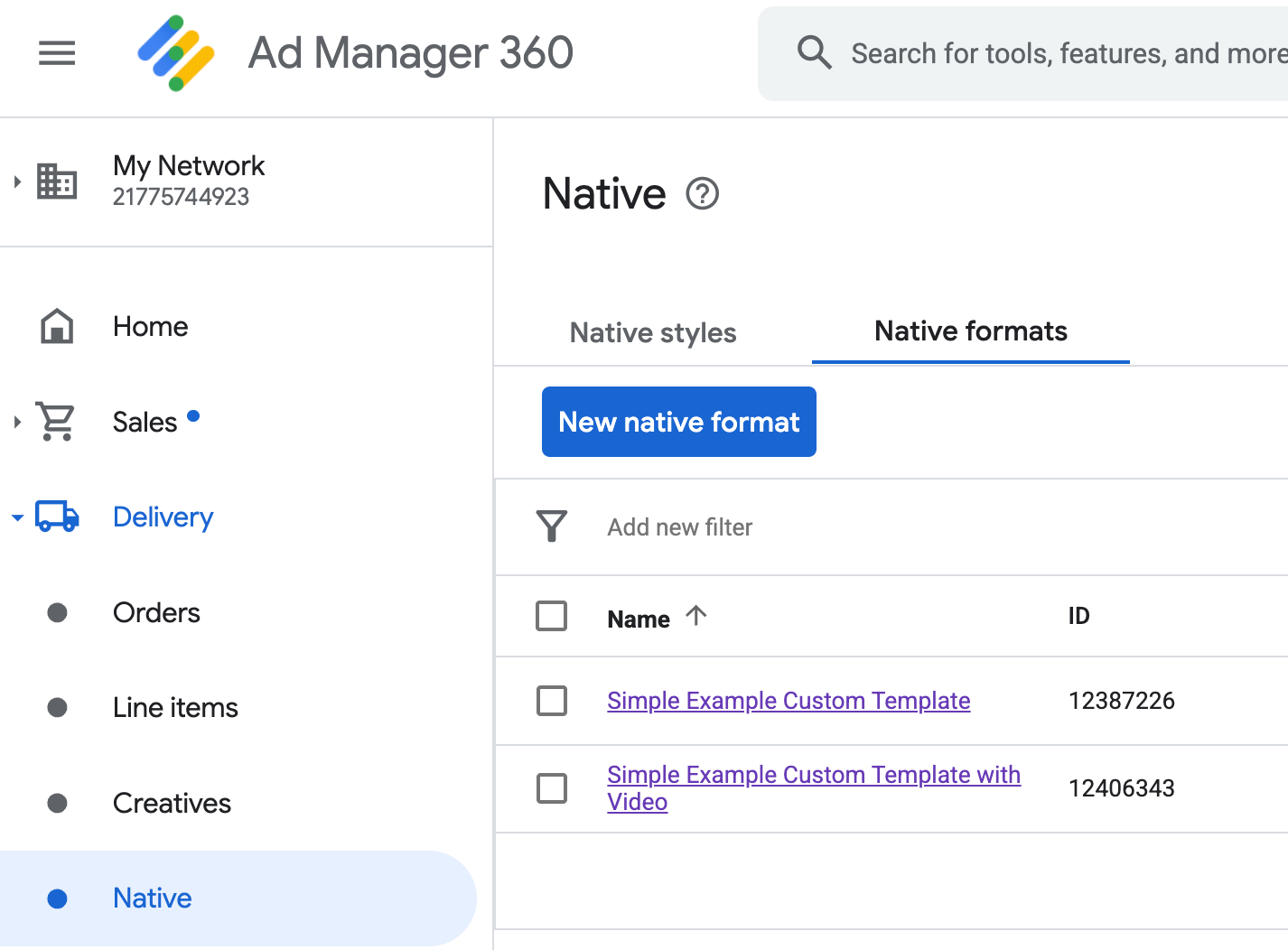
每個自訂原生廣告格式的 ID 都顯示在名稱旁。點選名稱即可進入詳細資料畫面,查看該格式欄位的資訊:
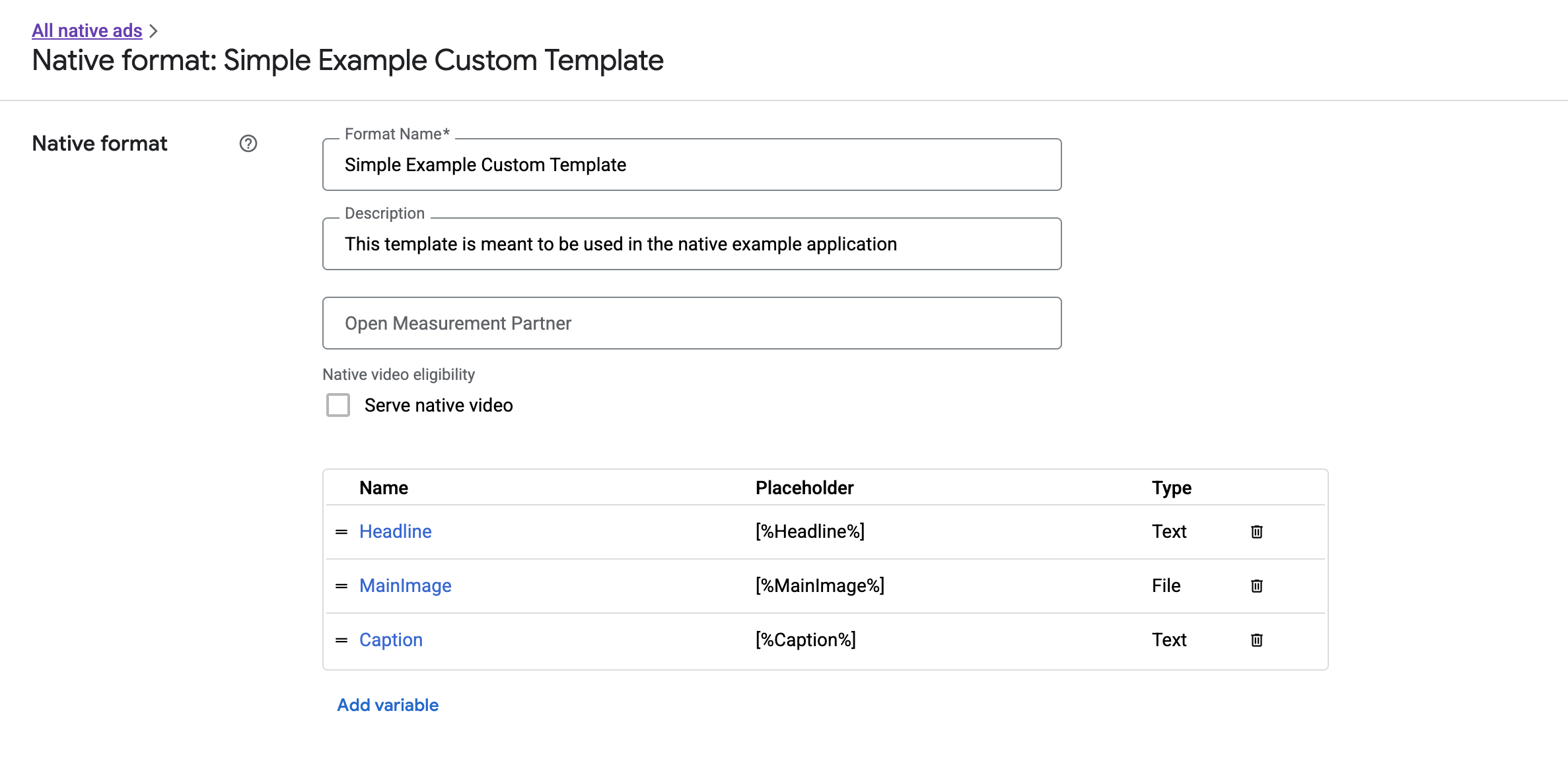
您可以在這裡新增、編輯及移除個別欄位。請記下每個素材資源的「名稱」,這個名稱就是在顯示自訂原生廣告格式時,用來取得相應資料的關鍵值。
顯示自訂原生廣告格式
自訂原生廣告格式與系統定義格式的不同之處在於,發布商可以自行定義組成廣告的素材資源。因此,顯示自訂原生廣告的流程與顯示系統定義格式的流程在某些方面有所差異:
GADCustomNativeAd專為處理您建立的自訂原生廣告格式設計,因此沒有固定名稱的素材資源存取子,而是提供imageForKey:、stringForKey:等方法,並以欄位名稱做為引數。GADCustomNativeAd沒有GADNativeAdView這種專用的廣告檢視區塊類別。您可以考量使用者體驗,自由選擇合適的檢視區塊來呈現廣告。- 由於沒有專用的廣告檢視區塊類別,所以您無需註冊用來顯示廣告素材的檢視區塊。
以下是可顯示簡單自訂原生廣告的檢視區塊範例:
MySimpleNativeAdView.h
Swift
import UIKit
import GoogleMobileAds

/// Custom native ad view class with format ID 10063170.
class MySimpleNativeAdView: UIView {

  /// Weak references to this ad's asset views.
  @IBOutlet weak var headlineView: UILabel!
  @IBOutlet weak var mainImageView: UIImageView!
  @IBOutlet weak var captionView: UILabel!

  ...

  /// Populates the ad view with the custom native ad object.
  func populateWithCustomNativeAd(_ customNativeAd: CustomNativeAd) {
    ...
  }
}
Objective-C
@import UIKit;
@import GoogleMobileAds;

/// View representing a custom native ad format with format ID 10063170.
@interface MySimpleNativeAdView : UIView

// Weak references to this ad's asset views.
@property(weak, nonatomic) IBOutlet UILabel *headlineView;
@property(weak, nonatomic) IBOutlet UIImageView *mainImageView;
@property(weak, nonatomic) IBOutlet UILabel *captionView;

/// Populates the ad view with the custom native ad object.
- (void)populateWithCustomNativeAd:(GADCustomNativeAd *)customNativeAd;

@end
MySimpleNativeAdView.m (摘錄)
Swift
...
func populateWithCustomNativeAd(_ customNativeAd: CustomNativeAd) {
  self.customNativeAd = customNativeAd

  // Populate the custom native ad assets.
  headlineView.text = self.customNativeAd.stringForKey("Headline")
  mainImageView.image = self.customNativeAd.imageForKey("MainImage")?.image
  captionView.text = self.customNativeAd.stringForKey("Caption")
}
...
Objective-C
...
- (void)populateWithCustomNativeAd:(GADCustomNativeAd *)customNativeAd {
  self.customNativeAd = customNativeAd;

  // Populate the custom native ad assets.
  self.headlineView.text = [customNativeAd stringForKey:@"Headline"];
  self.mainImageView.image = [customNativeAd imageForKey:@"MainImage"].image;
  self.captionView.text = [customNativeAd stringForKey:@"Caption"];
}
...
顯示 AdChoices 圖示
為遵守《數位服務法》(DSA),在歐洲經濟區 (EEA) 放送的預訂廣告需顯示 AdChoices 圖示,並提供 Google「關於這則廣告」頁面的連結。導入自訂原生廣告時,您需要負責顯示 AdChoices 圖示,設定相應的點擊事件監聽器,並確保在呈現主要廣告素材資源時,正確顯示 AdChoices 圖示。
以下示範如何顯示 AdChoices 圖示,並設定點擊行為。
Swift
class MySimpleNativeAdView: UIView {
  @IBOutlet weak var adChoicesView: UIImageView!

  override func awakeFromNib() {
    super.awakeFromNib()

    // Enable clicks on AdChoices.
    adChoicesView.addGestureRecognizer(
      UITapGestureRecognizer(
        target: self,
        action: #selector(performClickOnAdChoices(_:))))
    adChoicesView.isUserInteractionEnabled = true
  }

  @objc func performClickOnAdChoices(_ sender: UIImage!) {
    customNativeAd.performClickOnAsset(withKey:
      NativeAssetIdentifier.adChoicesViewAsset.rawValue)
  }

  func populate(withCustomNativeAd customNativeAd: CustomNativeAd) {

    // Render the AdChoices image.
    let adChoicesKey = NativeAssetIdentifier.adChoicesViewAsset.rawValue
    let adChoicesImage = customNativeAd.image(forKey: adChoicesKey)?.image
    adChoicesView.image = adChoicesImage
    adChoicesView.isHidden = adChoicesImage == nil
    ...
  }
}
Objective-C
@interface MySimpleNativeAdView ()

@property(nonatomic, weak) IBOutlet UIImageView *adChoicesView;

@end

@implementation MySimpleNativeAdView

- (void)awakeFromNib {
  [super awakeFromNib];
  // Enable clicks on AdChoices.
  [self.adChoicesView addGestureRecognizer:[[UITapGestureRecognizer alloc]
                                            initWithTarget:self
                                            action:@selector(performClickOnAdChoices:)]];
  self.adChoicesView.userInteractionEnabled = YES;
}

- (void)performClickOnAdChoices:(UITapGestureRecognizer *)sender {
    [self.customNativeAd performClickOnAssetWithKey:GADNativeAdChoicesViewAsset];
}

- (void)populateWithCustomNativeAd:(GADCustomNativeAd *)customNativeAd {
  // Render the AdChoices image.
  GADNativeAdImage *adChoicesAsset = [customNativeAd
    imageForKey:GADNativeAdChoicesViewAsset];
  self.adChoicesView.image = adChoicesAsset.image;
  self.adChoicesView.hidden = (adChoicesAsset == nil);
  ...
}
自訂原生廣告格式的原生影片
建立自訂格式時,您可以選擇讓格式支援影片。
在應用程式導入過程中,使用 GADCustomNativeAd.mediaContent 屬性取得廣告的 GADMediaContent 執行個體。如要判斷廣告是否含有影片內容,請檢查 hasVideoContent 屬性。如果廣告含有影片內容,請建立 GADMediaView 檢視區塊、指派 mediaContent 屬性,並將媒體檢視區塊加入檢視區塊階層。如果廣告不含影片內容,請改為顯示圖片等其他素材資源。
以下示範如何檢查廣告是否含有影片內容,以及如何在沒有影片可用時顯示圖片:
Swift
func populate(withCustomNativeAd customNativeAd: CustomNativeAd) {
// Remove all the media placeholder's subviews.
for subview: UIView in mainPlaceholder.subviews {
subview.removeFromSuperview()
}
// This custom native ad has both a video and image associated with it. Use the video
// asset if available, or fall back to the image asset.
let mainView: UIView
if customNativeAd.mediaContent.hasVideoContent {
let mediaView = MediaView()
mediaView.mediaContent = customNativeAd.mediaContent
mainView = mediaView
} else {
let image: UIImage? = customNativeAd.image(forKey: "MainImage")?.image
mainView = UIImageView(image: image)
}
mainPlaceholder.addSubview(mainView)
// Size the media view to fill the container size.
mainView.translatesAutoresizingMaskIntoConstraints = false
NSLayoutConstraint.activate([
mainView.leadingAnchor.constraint(equalTo: mainPlaceholder.leadingAnchor),
mainView.trailingAnchor.constraint(equalTo: mainPlaceholder.trailingAnchor),
mainView.topAnchor.constraint(equalTo: mainPlaceholder.topAnchor),
mainView.bottomAnchor.constraint(equalTo: mainPlaceholder.bottomAnchor),
])
}
Objective-C
- (void)populateWithCustomNativeAd:(GADCustomNativeAd *)customNativeAd {
// Remove all the media placeholder's subviews.
for (UIView *subview in self.mainPlaceholder.subviews) {
[subview removeFromSuperview];
}
// This custom native ad has both a video and image associated with it. Use the video
// asset if available, or fall back to the image asset.
UIView *mainView = nil;
if (customNativeAd.mediaContent.hasVideoContent) {
GADMediaView *mediaView = [[GADMediaView alloc] init];
mediaView.mediaContent = customNativeAd.mediaContent;
mainView = mediaView;
} else {
UIImage *image = [customNativeAd imageForKey:@"MainImage"].image;
mainView = [[UIImageView alloc] initWithImage:image];
}
[self.mainPlaceholder addSubview:mainView];
// Size the media view to fill the container size.
mainView.translatesAutoresizingMaskIntoConstraints = NO;
[NSLayoutConstraint activateConstraints:@[
[mainView.leadingAnchor constraintEqualToAnchor:self.mainPlaceholder.leadingAnchor],
[mainView.trailingAnchor constraintEqualToAnchor:self.mainPlaceholder.trailingAnchor],
[mainView.topAnchor constraintEqualToAnchor:self.mainPlaceholder.topAnchor],
[mainView.bottomAnchor constraintEqualToAnchor:self.mainPlaceholder.bottomAnchor],
]];
}
如要進一步瞭解如何自訂原生廣告影片,請參閱 GADVideoController 類別。
如要瞭解如何導入自訂原生影片,請參閱 Swift 和 Objective-C 的 Ad Manager 自訂顯示範例。
處理自訂原生廣告的點擊和曝光
對於自訂原生廣告格式,您的應用程式需要自行記錄曝光次數,並向 SDK 回報點擊事件。
記錄曝光次數
如要記錄自訂原生廣告的一次曝光,只需在對應的 GADCustomNativeAd 上呼叫 recordImpression 方法:
Swift
myCustomNativeAd.recordImpression()
Objective-C
[myCustomNativeAd recordImpression];
如果應用程式在單次請求中,不慎對同一則廣告多次呼叫該方法,SDK 會避免重複記錄曝光次數。
回報點擊次數
如要向 SDK 回報某個素材資源檢視區塊的點擊事件,請在對應的 GADCustomNativeAd 上呼叫 performClickOnAssetWithKey: 方法,並傳遞受點擊素材資源的名稱。舉例來說,若自訂格式包含名為「MainImage」的素材資源,而您想回報相應檢視區塊的點擊次數,則程式碼如下所示:
Swift
myCustomNativeAd.performClickOnAsset(withKey: "MainImage")
Objective-C
[myCustomNativeAd performClickOnAssetWithKey:@"MainImage"];
請注意,您不需要對廣告中每個素材資源的檢視區塊呼叫這個方法。舉例來說,如果名為「Caption」的素材資源只是用來顯示,使用者不會點選或觸碰,應用程式就無需對這個檢視區塊呼叫 performClickOnAssetWithKey:。
回應自訂點擊動作
GADCustomNativeAd 具有 GADNativeAdCustomClickHandler 類型的 customClickHandler 屬性。
Swift
typealias NativeAdCustomClickHandler = (assetID: String) -> Void
Objective-C
typedef void (^GADNativeAdCustomClickHandler)(NSString *assetID);
這是接受 assetID 做為輸入參數的區塊 (Objective-C) 或閉包 (Swift),用於識別受點擊的素材資源。
當使用者點選自訂原生廣告,SDK 會依序嘗試以下三種可能回應:
- 如已設定
customClickHandler,則在 Objective-C 中叫用該區塊,或在 Swift 中叫用該閉包。 - 依序檢查廣告的深層連結網址,並開啟第一個能找到對應應用程式的連結。
- 開啟瀏覽器,前往廣告的傳統到達網頁網址。
customClickHandler 屬性可接受 Objective-C 區塊或 Swift 閉包。如果設定了區塊或閉包,SDK 會直接執行,不再採取其他動作。如果設定空值,SDK 則會改用廣告註冊的深層連結和/或到達網頁網址。
自訂點擊處理常式可讓應用程式自行決定點擊後要採取的最佳動作,例如更新 UI、顯示其他檢視區塊控制器,或單純記錄點擊事件。以下是顯示快訊的程式碼範例:
Swift
myCustomNativeAd.customClickHandler = { assetID in
  if assetID == "MainImage" {
    let alertView = UIAlertView(title: "Custom Click",
        message: "You just clicked on the image!",
        delegate: self,
        cancelButtonTitle: "OK")
    alertView.alertViewStyle = .default
    alertView.show()
  }
}
myCustomNativeAd.performClickOnAsset(withKey: "MainImage")
Objective-C
[self.customNativeAd setCustomClickHandler:^(NSString *assetID){
  if ([assetID isEqualToString:@"MainImage"]) {
    [[[UIAlertView alloc] initWithTitle:@"Custom Click"
                                message:@"You just clicked on the image!"
                               delegate:self
                      cancelButtonTitle:@"OK"
                      otherButtonTitles:nil] show];
  }
}];
[self.customNativeAd performClickOnAssetWithKey:@"MainImage"];
測試原生廣告程式碼
直接銷售廣告
如要測試直接銷售原生廣告,可以使用以下 Ad Manager 廣告單元 ID:
/21775744923/example/native
這個 ID 已設為可放送範例應用程式安裝廣告和內容廣告,以及符合自訂原生廣告格式、包含下列素材資源的廣告:
- Headline (文字)
- MainImage (圖片)
- Caption (文字)
原生候補廣告
如要測試原生候補廣告的行為,請使用以下 Ad Manager 廣告單元:
/21775744923/example/native-backfill
這會放送附有 AdChoices 標籤的範例應用程式安裝和內容廣告。
正式上線前,別忘了將程式碼中的廣告單元 ID 和格式 ID 更新為實際使用的值!