会議でのセッションへの登録を作成する

コーディング レベル: 初級
期間: 5 分
プロジェクト タイプ: カスタム メニューイベント ドリブン トリガーを使用した自動化

目標

  • ソリューションの機能について理解する。
  • ソリューション内での Apps Script サービスの機能について理解する。
  • スクリプトを設定する。
  • スクリプトを実行する。

このソリューションについて

エンドツーエンドのイベント登録システムを作成します。会議などのイベントが予定されている場合は、会議セッション用の新しいカレンダーを設定し、登録フォームを作成して、参加者にパーソナライズされた日程表を自動的にメールで送信できます。
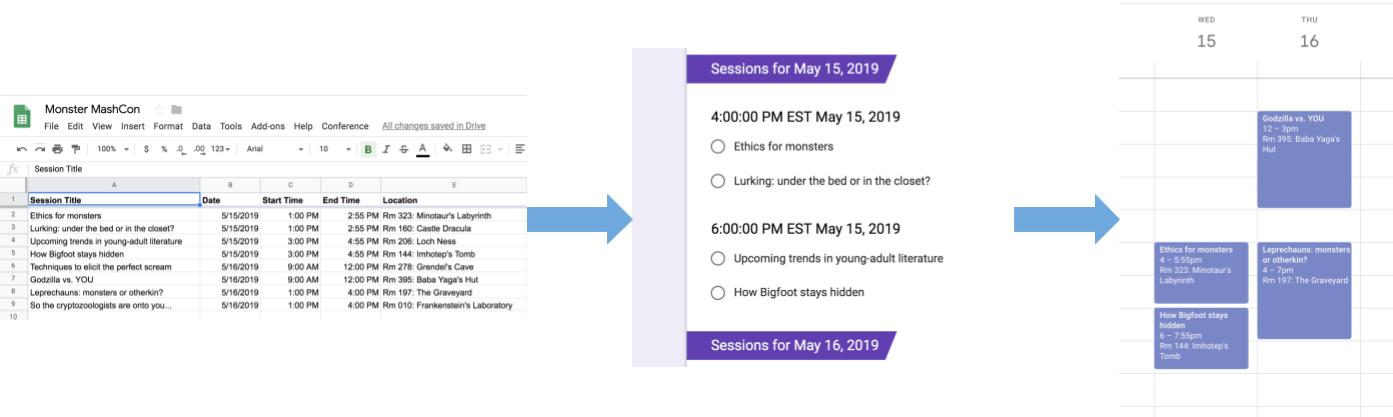
スプレッドシートからフォームとカレンダーに転送される情報

仕組み

このソリューションでは、Google スプレッドシートのカスタム メニューを使用して、自動イベント登録システムを実装します。スクリプトは、スプレッドシートに記載されている会議イベントを含むカレンダーを作成します。次に、参加者が登録できるイベントのリストを含むフォームを作成します。参加者がフォームに記入すると、スクリプトは参加者をカレンダーの予定に追加し、日程表をメールで送信します。

Apps Script サービス

このソリューションでは、次のサービスを使用します。

  • スプレッドシート サービス: イベント情報を他のサービスに提供します。
  • Google カレンダー サービス: イベントの 新しいカレンダーを作成し、カレンダーにイベントを追加して、参加者が登録したイベントに 参加者を追加します。
  • プロパティ サービス: カレンダー サービスで作成されたカレンダーの ID を保存します。ユーザーがカスタムの [会議] メニューから [会議を設定] をクリックすると、プロパティ サービスはカレンダー ID プロパティが存在するかどうかを確認して、イベント登録システムがすでに設定されているかどうかを確認します。これにより、フォームとカレンダーの重複作成を回避できます。
  • Google フォーム サービス: スプレッドシートの情報から、参加者がセッションに登録できるフォームを作成します。
  • スクリプト サービス: 参加者がフォームに記入したときに起動するトリガーを作成します。
  • ドキュメント サービス: 参加者が登録したイベントのイベント 情報を取得し、 イベントのリストを新しいドキュメントに追加します。スクリプトは、参加者にドキュメントの編集権限を付与します。
  • メールサービス: 日程表ドキュメントを 参加者にメールで送信します。

前提条件

このサンプルを使用するには、次の前提条件を満たしている必要があります。

  • Google アカウント(Google Workspace アカウントの場合、管理者の承認が必要となる可能性があります)。
  • インターネットにアクセスできるウェブブラウザ。

スクリプトを設定する

  1. 次のボタンをクリックして、会議のセッションの登録を作成する サンプル スプレッドシートのコピーを作成します。このソリューションの Apps Script プロジェクトは、スプレッドシートに添付されています。

    コピーを作成

  2. [会議] [>] [会議を設定] をクリックします。このカスタム メニューが表示されない場合は、ページの更新が必要になることがあります。

  3. メッセージが表示されたら、スクリプトを承認します。 <<../_snippets/oauth.md>>

  4. [会議] [>] [会議を設定] をもう一度クリックします。

スクリプトを実行する

  1. [ツール] [>] [フォームを管理] [>] [公開フォームに移動] をクリックします。
  2. フォームに情報を入力して送信します。
  3. calendar.google.com にアクセスします。
  4. 左側の [会議カレンダー] の横にあるチェックボックスがオンになっていることを確認します。
  5. 登録したイベントの日付に移動し、参加者として追加されていることを確認します。

(省略可)ソリューションをリセットする

このソリューションをもう一度試す場合や、独自のイベント情報を使用するようにカスタマイズする場合は、スクリプトを最初に実行したときに設定した項目をリセットする必要があります。ソリューションをリセットする手順を表示するには、 [**ソリューションをリセット**] をクリックします。

ソリューションをリセットする

ステップ 1: 保存されているスクリプト プロパティをリセットする

スクリプトを複数回実行しようとすると、「会議はすでに設定されています。登録フォームは Google ドライブにあります。 これは、会議カレンダーが作成されると、 カレンダー ID がスクリプト プロパティとして保存されるためです。スクリプトを実行すると、カレンダー ID プロパティがすでに存在するかどうかを確認し、存在する場合は実行を停止します。

既存のカレンダー ID プロパティを削除する手順は次のとおりです。

  1. スプレッドシートで、[**拡張機能**] >[**Apps Script**] をクリックします。
  2. Apps Script エディタで、関数プルダウン リストから resetProperties を選択し、[実行] をクリックします。

ステップ 2: 会議カレンダーを削除する

スクリプトを実行するたびに、新しいカレンダーが作成されます。作成された元のカレンダーを保持しない場合は、次の手順を行います。

  1. calendar.google.com にアクセスします。
  2. 会議カレンダーの横にある会議カレンダーのオプション > [設定と共有] をクリックします。
  3. 設定の一番下まで移動して、[削除] をクリックします。

ステップ 3: フォーム送信トリガーを削除する

スクリプトを実行するたびに、フォーム送信のトリガーが作成されます。重複するメールが送信される原因となる複数のトリガーを回避するには、元のトリガーを削除します。手順は次のとおりです。

  1. スプレッドシートで、[**拡張機能**] >[**Apps Script**] をクリックします。
  2. Apps Script プロジェクトの左側にある [トリガー] をクリックします。
  3. トリガーの横にあるその他アイコン > [**トリガーを削除**] をクリックします。

スクリプトを実行するたびに、新しいフォームが作成されます。フォームをスプレッドシートから リンク解除して削除する手順は次のとおりです。

  1. スプレッドシートで、[**フォームの回答**] シートを右クリックし、 [**フォームのリンクを解除**] > [**OK**] をクリックします。
  2. [フォームの回答] シートをもう一度右クリックし、[削除] > [OK] をクリックします。
  3. forms.google.com にアクセスします。
  4. [**会議フォーム**] を右クリックし、[**削除**] > [**ゴミ箱に移動**] をクリックします。

ソリューションをリセットしたら、独自のデータを追加するか、サンプルデータを引き続き使用して、スクリプトを再度実行できます。

コードを確認する

このソリューションの Apps Script コードを確認するには、 [ソースコードを表示]をクリックします:

ソースコードを表示

Code.gs

solutions/automations/event-session-signup/Code.js
// To learn how to use this script, refer to the documentation:
// https://developers.google.com/apps-script/samples/automations/event-session-signup

/*
Copyright 2022 Google LLC

Licensed under the Apache License, Version 2.0 (the "License");
you may not use this file except in compliance with the License.
You may obtain a copy of the License at

    https://www.apache.org/licenses/LICENSE-2.0

Unless required by applicable law or agreed to in writing, software
distributed under the License is distributed on an "AS IS" BASIS,
WITHOUT WARRANTIES OR CONDITIONS OF ANY KIND, either express or implied.
See the License for the specific language governing permissions and
limitations under the License.
*/

/**
 * Inserts a custom menu when the spreadsheet opens.
 */
function onOpen() {
  SpreadsheetApp.getUi()
    .createMenu("Conference")
    .addItem("Set up conference", "setUpConference_")
    .addToUi();
}

/**
 * Uses the conference data in the spreadsheet to create
 * Google Calendar events, a Google Form, and a trigger that allows the script
 * to react to form responses.
 */
function setUpConference_() {
  const scriptProperties = PropertiesService.getScriptProperties();
  if (scriptProperties.getProperty("calId")) {
    Browser.msgBox(
      "Your conference is already set up. Look in Google Drive for your" +
        " sign-up form!",
    );
    return;
  }
  const ss = SpreadsheetApp.getActive();
  const sheet = ss.getSheetByName("Conference Setup");
  const range = sheet.getDataRange();
  const values = range.getValues();
  setUpCalendar_(values, range);
  setUpForm_(ss, values);
  ScriptApp.newTrigger("onFormSubmit")
    .forSpreadsheet(ss)
    .onFormSubmit()
    .create();
}

/**
 * Creates a Google Calendar with events for each conference session in the
 * spreadsheet, then writes the event IDs to the spreadsheet for future use.
 * @param {Array<string[]>} values Cell values for the spreadsheet range.
 * @param {Range} range A spreadsheet range that contains conference data.
 */
function setUpCalendar_(values, range) {
  const cal = CalendarApp.createCalendar("Conference Calendar");
  // Start at 1 to skip the header row.
  for (let i = 1; i < values.length; i++) {
    const session = values[i];
    const title = session[0];
    const start = joinDateAndTime_(session[1], session[2]);
    const end = joinDateAndTime_(session[1], session[3]);
    const options = { location: session[4], sendInvites: true };
    const event = cal
      .createEvent(title, start, end, options)
      .setGuestsCanSeeGuests(false);
    session[5] = event.getId();
  }
  range.setValues(values);

  // Stores the ID for the Calendar, which is needed to retrieve events by ID.
  const scriptProperties = PropertiesService.getScriptProperties();
  scriptProperties.setProperty("calId", cal.getId());
}

/**
 * Creates a single Date object from separate date and time cells.
 *
 * @param {Date} date A Date object from which to extract the date.
 * @param {Date} time A Date object from which to extract the time.
 * @return {Date} A Date object representing the combined date and time.
 */
function joinDateAndTime_(date_, time) {
  const processedDate = new Date(date_);
  processedDate.setHours(time.getHours());
  processedDate.setMinutes(time.getMinutes());
  return processedDate;
}

/**
 * Creates a Google Form that allows respondents to select which conference
 * sessions they would like to attend, grouped by date and start time in the
 * caller's time zone.
 *
 * @param {Spreadsheet} ss The spreadsheet that contains the conference data.
 * @param {Array<String[]>} values Cell values for the spreadsheet range.
 */
function setUpForm_(ss, values) {
  // Group the sessions by date and time so that they can be passed to the form.
  const schedule = {};
  // Start at 1 to skip the header row.
  for (let i = 1; i < values.length; i++) {
    const session = values[i];
    const day = session[1].toLocaleDateString();
    const time = session[2].toLocaleTimeString();
    if (!schedule[day]) {
      schedule[day] = {};
    }
    if (!schedule[day][time]) {
      schedule[day][time] = [];
    }
    schedule[day][time].push(session[0]);
  }

  // Creates the form and adds a multiple-choice question for each timeslot.
  const form = FormApp.create("Conference Form");
  form.setDestination(FormApp.DestinationType.SPREADSHEET, ss.getId());
  form.addTextItem().setTitle("Name").setRequired(true);
  form.addTextItem().setTitle("Email").setRequired(true);
  for (const day of Object.keys(schedule)) {
    form.addSectionHeaderItem().setTitle(`Sessions for ${day}`);
    for (const time of Object.keys(schedule[day])) {
      form
        .addMultipleChoiceItem()
        .setTitle(`${time} ${day}`)
        .setChoiceValues(schedule[day][time]);
    }
  }
}

/**
 * Sends out calendar invitations and a
 * personalized Google Docs itinerary after a user responds to the form.
 *
 * @param {Object} e The event parameter for form submission to a spreadsheet;
 *     see https://developers.google.com/apps-script/understanding_events
 */
function onFormSubmit(e) {
  const user = {
    name: e.namedValues.Name[0],
    email: e.namedValues.Email[0],
  };

  // Grab the session data again so that we can match it to the user's choices.
  const response = [];
  const values = SpreadsheetApp.getActive()
    .getSheetByName("Conference Setup")
    .getDataRange()
    .getValues();
  for (let i = 1; i < values.length; i++) {
    const session = values[i];
    const title = session[0];
    const day = session[1].toLocaleDateString();
    const time = session[2].toLocaleTimeString();
    const timeslot = `${time} ${day}`;

    // For every selection in the response, find the matching timeslot and title
    // in the spreadsheet and add the session data to the response array.
    if (e.namedValues[timeslot] && e.namedValues[timeslot] === title) {
      response.push(session);
    }
  }
  sendInvites_(user, response);
  sendDoc_(user, response);
}

/**
 * Add the user as a guest for every session he or she selected.
 * @param {object} user An object that contains the user's name and email.
 * @param {Array<String[]>} response An array of data for the user's session choices.
 */
function sendInvites_(user, response) {
  const id = ScriptProperties.getProperty("calId");
  const cal = CalendarApp.getCalendarById(id);
  for (let i = 0; i < response.length; i++) {
    cal.getEventSeriesById(response[i][5]).addGuest(user.email);
  }
}

/**
 * Creates and shares a personalized Google Doc that shows the user's itinerary.
 * @param {object} user An object that contains the user's name and email.
 * @param {Array<string[]>} response An array of data for the user's session choices.
 */
function sendDoc_(user, response) {
  const doc = DocumentApp.create(
    `Conference Itinerary for ${user.name}`,
  ).addEditor(user.email);
  const body = doc.getBody();
  let table = [["Session", "Date", "Time", "Location"]];
  for (let i = 0; i < response.length; i++) {
    table.push([
      response[i][0],
      response[i][1].toLocaleDateString(),
      response[i][2].toLocaleTimeString(),
      response[i][4],
    ]);
  }
  body
    .insertParagraph(0, doc.getName())
    .setHeading(DocumentApp.ParagraphHeading.HEADING1);
  table = body.appendTable(table);
  table.getRow(0).editAsText().setBold(true);
  doc.saveAndClose();

  // Emails a link to the Doc as well as a PDF copy.
  MailApp.sendEmail({
    to: user.email,
    subject: doc.getName(),
    body: `Thanks for registering! Here's your itinerary: ${doc.getUrl()}`,
    attachments: doc.getAs(MimeType.PDF),
  });
}

/**
 * Removes the calId script property so that the 'setUpConference_()' can be run again.
 */
function resetProperties() {
  const scriptProperties = PropertiesService.getScriptProperties();
  scriptProperties.deleteAllProperties();
}
</section>

寄稿者

このサンプルは、Google デベロッパー エキスパートの協力のもと、Google によって管理されています。

次のステップ