创建会议会议注册

编码水平:初级
时长:5 分钟
项目类型:使用自定义菜单事件驱动型触发器实现自动化

目标

  • 了解解决方案的功能。
  • 了解 Apps 脚本服务在解决方案中的功能。
  • 设置脚本。
  • 运行脚本。

关于此解决方案

创建一个端到端活动报名系统。如果您即将举办活动(例如会议),则可以为会议分会设置新日历、创建报名表单,并自动通过电子邮件向参加者发送个性化日程。
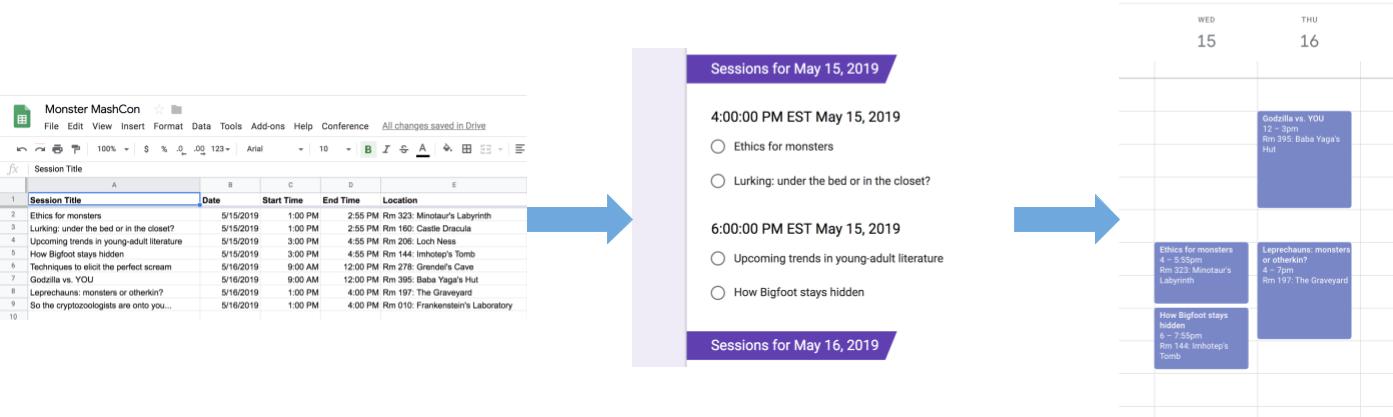
从 Google 表格转移到 Google 表单和 Google 日历的信息

运作方式

此解决方案使用 Google 表格中的自定义菜单来实现自动活动报名系统。该脚本会创建一个日历,其中列出了表格电子表格中的会议活动。然后,该脚本会创建一个表单,其中列出了参加者可以报名的活动。参加者填写表单后,该脚本会将参加者添加到日历活动中,并通过电子邮件向他们发送日程。

Apps 脚本服务

此解决方案使用以下服务:

  • Spreadsheet 服务:向其他服务提供 活动信息。
  • Google 日历服务:为活动创建 新日历,向日历添加活动,并将参加者 添加到他们报名的活动中。
  • Properties 服务:存储由日历服务创建的日历的 ID。当用户从自定义会议 菜单中点击设置会议 时,Properties 服务会检查日历 ID 属性是否存在,以检查活动报名系统是否已设置。这样做有助于避免创建重复的表单和日历。
  • Google 表单服务:根据电子表格中的信息创建一个表单,让参加者可以报名参加分会。
  • 脚本服务:创建一个触发器,当参加者填写表单时,该触发器会触发。
  • Document 服务:获取参加者报名的活动 的活动信息,并将活动列表添加到新文档中。该脚本会授予参加者修改文档的权限。
  • 邮件服务:通过电子邮件向 参加者发送日程文档。

前提条件

如需使用此示例,您需要满足以下前提条件:

  • 一个 Google 账号(Google Workspace 账号可能需要管理员批准)。
  • 一个可访问互联网的网络浏览器。

设置脚本

  1. 点击以下按钮,复制创建会议分会报名表单 示例表格电子表格。此解决方案的 Apps 脚本项目已附加到该电子表格:

    复制聊天机器人

  2. 依次点击会议 > 设置 会议。您可能需要刷新页面才能显示此自定义菜单。

  3. 根据提示为脚本授权。 <<../_snippets/oauth.md>>

  4. 再次依次点击会议 > 设置 会议

运行脚本

  1. 依次点击工具 > 管理表单 > 前往实时表单
  2. 填写并提交表单。
  3. 前往 calendar.google.com
  4. 在左侧,确保选中会议日历 旁边的复选框。
  5. 前往您报名的活动的日期,并确认您已添加为参加者。

(可选)重置解决方案

如果您想再次试用此解决方案,或对其进行自定义以使用自己的活动信息,则需要重置首次运行脚本时设置的一些项。如需查看重置解决方案的步骤,请点击 重置解决方案

重置解决方案

第 1 步:重置存储的脚本属性

如果您尝试多次运行脚本,系统会提示您的 会议已设置完毕。请在 Google 云端硬盘中查找报名表单!发生这种情况的原因是,创建会议日历后, 日历 ID 会存储为脚本属性。当脚本运行时,它 会检查日历 ID 属性是否已存在,如果存在,则停止运行。

请按照以下步骤移除现有的日历 ID 属性:

  1. 在电子表格中,依次点击扩展程序 > Apps 脚本
  2. 在 Apps 脚本编辑器中,从函数下拉列表中选择 resetProperties ,然后点击 运行

第 2 步:删除会议日历

每次运行脚本时,它都会创建一个新日历。如果您不想保留创建的原始日历,请按照以下步骤操作:

  1. 前往 calendar.google.com
  2. 在“会议日历”旁边,依次点击“会议日历”的“选项”图标 > 设置和共享
  3. 前往设置底部,然后点击删除

第 3 步:删除表单提交触发器

每次运行脚本时,它都会为表单提交创建一个触发器。为避免多个触发器导致重复的电子邮件,请移除原始触发器。请按照以下步骤操作:

  1. 在电子表格中,依次点击扩展程序 > Apps 脚本
  2. 在 Apps 脚本项目的左侧,点击触发器
  3. 在触发器旁边,依次点击“更多” > 删除触发器

每次运行脚本时,它都会创建一个新表单。请按照以下步骤将表单与电子表格解除关联并删除:

  1. 在电子表格中,右键点击表单回复工作表,然后依次点击 取消关联表单 > 确定
  2. 再次右键点击表单回复 工作表,然后依次点击删除 > 确定
  3. 前往 forms.google.com
  4. 右键点击会议表单 ,然后依次点击移除 > 移至回收站

重置解决方案后,您可以添加自己的数据,也可以继续使用示例数据,然后再次运行脚本。

查看代码

如需查看此解决方案的 Apps 脚本代码,请点击 查看源代码

查看源代码

Code.gs

solutions/automations/event-session-signup/Code.js
// To learn how to use this script, refer to the documentation:
// https://developers.google.com/apps-script/samples/automations/event-session-signup

/*
Copyright 2022 Google LLC

Licensed under the Apache License, Version 2.0 (the "License");
you may not use this file except in compliance with the License.
You may obtain a copy of the License at

    https://www.apache.org/licenses/LICENSE-2.0

Unless required by applicable law or agreed to in writing, software
distributed under the License is distributed on an "AS IS" BASIS,
WITHOUT WARRANTIES OR CONDITIONS OF ANY KIND, either express or implied.
See the License for the specific language governing permissions and
limitations under the License.
*/

/**
 * Inserts a custom menu when the spreadsheet opens.
 */
function onOpen() {
  SpreadsheetApp.getUi()
    .createMenu("Conference")
    .addItem("Set up conference", "setUpConference_")
    .addToUi();
}

/**
 * Uses the conference data in the spreadsheet to create
 * Google Calendar events, a Google Form, and a trigger that allows the script
 * to react to form responses.
 */
function setUpConference_() {
  const scriptProperties = PropertiesService.getScriptProperties();
  if (scriptProperties.getProperty("calId")) {
    Browser.msgBox(
      "Your conference is already set up. Look in Google Drive for your" +
        " sign-up form!",
    );
    return;
  }
  const ss = SpreadsheetApp.getActive();
  const sheet = ss.getSheetByName("Conference Setup");
  const range = sheet.getDataRange();
  const values = range.getValues();
  setUpCalendar_(values, range);
  setUpForm_(ss, values);
  ScriptApp.newTrigger("onFormSubmit")
    .forSpreadsheet(ss)
    .onFormSubmit()
    .create();
}

/**
 * Creates a Google Calendar with events for each conference session in the
 * spreadsheet, then writes the event IDs to the spreadsheet for future use.
 * @param {Array<string[]>} values Cell values for the spreadsheet range.
 * @param {Range} range A spreadsheet range that contains conference data.
 */
function setUpCalendar_(values, range) {
  const cal = CalendarApp.createCalendar("Conference Calendar");
  // Start at 1 to skip the header row.
  for (let i = 1; i < values.length; i++) {
    const session = values[i];
    const title = session[0];
    const start = joinDateAndTime_(session[1], session[2]);
    const end = joinDateAndTime_(session[1], session[3]);
    const options = { location: session[4], sendInvites: true };
    const event = cal
      .createEvent(title, start, end, options)
      .setGuestsCanSeeGuests(false);
    session[5] = event.getId();
  }
  range.setValues(values);

  // Stores the ID for the Calendar, which is needed to retrieve events by ID.
  const scriptProperties = PropertiesService.getScriptProperties();
  scriptProperties.setProperty("calId", cal.getId());
}

/**
 * Creates a single Date object from separate date and time cells.
 *
 * @param {Date} date A Date object from which to extract the date.
 * @param {Date} time A Date object from which to extract the time.
 * @return {Date} A Date object representing the combined date and time.
 */
function joinDateAndTime_(date_, time) {
  const processedDate = new Date(date_);
  processedDate.setHours(time.getHours());
  processedDate.setMinutes(time.getMinutes());
  return processedDate;
}

/**
 * Creates a Google Form that allows respondents to select which conference
 * sessions they would like to attend, grouped by date and start time in the
 * caller's time zone.
 *
 * @param {Spreadsheet} ss The spreadsheet that contains the conference data.
 * @param {Array<String[]>} values Cell values for the spreadsheet range.
 */
function setUpForm_(ss, values) {
  // Group the sessions by date and time so that they can be passed to the form.
  const schedule = {};
  // Start at 1 to skip the header row.
  for (let i = 1; i < values.length; i++) {
    const session = values[i];
    const day = session[1].toLocaleDateString();
    const time = session[2].toLocaleTimeString();
    if (!schedule[day]) {
      schedule[day] = {};
    }
    if (!schedule[day][time]) {
      schedule[day][time] = [];
    }
    schedule[day][time].push(session[0]);
  }

  // Creates the form and adds a multiple-choice question for each timeslot.
  const form = FormApp.create("Conference Form");
  form.setDestination(FormApp.DestinationType.SPREADSHEET, ss.getId());
  form.addTextItem().setTitle("Name").setRequired(true);
  form.addTextItem().setTitle("Email").setRequired(true);
  for (const day of Object.keys(schedule)) {
    form.addSectionHeaderItem().setTitle(`Sessions for ${day}`);
    for (const time of Object.keys(schedule[day])) {
      form
        .addMultipleChoiceItem()
        .setTitle(`${time} ${day}`)
        .setChoiceValues(schedule[day][time]);
    }
  }
}

/**
 * Sends out calendar invitations and a
 * personalized Google Docs itinerary after a user responds to the form.
 *
 * @param {Object} e The event parameter for form submission to a spreadsheet;
 *     see https://developers.google.com/apps-script/understanding_events
 */
function onFormSubmit(e) {
  const user = {
    name: e.namedValues.Name[0],
    email: e.namedValues.Email[0],
  };

  // Grab the session data again so that we can match it to the user's choices.
  const response = [];
  const values = SpreadsheetApp.getActive()
    .getSheetByName("Conference Setup")
    .getDataRange()
    .getValues();
  for (let i = 1; i < values.length; i++) {
    const session = values[i];
    const title = session[0];
    const day = session[1].toLocaleDateString();
    const time = session[2].toLocaleTimeString();
    const timeslot = `${time} ${day}`;

    // For every selection in the response, find the matching timeslot and title
    // in the spreadsheet and add the session data to the response array.
    if (e.namedValues[timeslot] && e.namedValues[timeslot] === title) {
      response.push(session);
    }
  }
  sendInvites_(user, response);
  sendDoc_(user, response);
}

/**
 * Add the user as a guest for every session he or she selected.
 * @param {object} user An object that contains the user's name and email.
 * @param {Array<String[]>} response An array of data for the user's session choices.
 */
function sendInvites_(user, response) {
  const id = ScriptProperties.getProperty("calId");
  const cal = CalendarApp.getCalendarById(id);
  for (let i = 0; i < response.length; i++) {
    cal.getEventSeriesById(response[i][5]).addGuest(user.email);
  }
}

/**
 * Creates and shares a personalized Google Doc that shows the user's itinerary.
 * @param {object} user An object that contains the user's name and email.
 * @param {Array<string[]>} response An array of data for the user's session choices.
 */
function sendDoc_(user, response) {
  const doc = DocumentApp.create(
    `Conference Itinerary for ${user.name}`,
  ).addEditor(user.email);
  const body = doc.getBody();
  let table = [["Session", "Date", "Time", "Location"]];
  for (let i = 0; i < response.length; i++) {
    table.push([
      response[i][0],
      response[i][1].toLocaleDateString(),
      response[i][2].toLocaleTimeString(),
      response[i][4],
    ]);
  }
  body
    .insertParagraph(0, doc.getName())
    .setHeading(DocumentApp.ParagraphHeading.HEADING1);
  table = body.appendTable(table);
  table.getRow(0).editAsText().setBold(true);
  doc.saveAndClose();

  // Emails a link to the Doc as well as a PDF copy.
  MailApp.sendEmail({
    to: user.email,
    subject: doc.getName(),
    body: `Thanks for registering! Here's your itinerary: ${doc.getUrl()}`,
    attachments: doc.getAs(MimeType.PDF),
  });
}

/**
 * Removes the calId script property so that the 'setUpConference_()' can be run again.
 */
function resetProperties() {
  const scriptProperties = PropertiesService.getScriptProperties();
  scriptProperties.deleteAllProperties();
}
</section>

贡献者

此示例由 Google 在 Google 开发者专家的帮助下维护。

后续步骤