등급별 가격 할인 계산

코딩 수준: 초급
기간: 10분
프로젝트 유형: 커스텀 함수

목표

  • 솔루션의 기능을 이해합니다.
  • 솔루션 내에서 Google Apps Script 서비스의 기능을 이해합니다.
  • 스크립트를 설정합니다.
  • 스크립트를 실행합니다.

이 솔루션 정보

고객에게 단계별 가격 책정 시스템을 제공하는 경우 이 커스텀 함수를 사용하면 Google Sheets에서 가격의 할인 금액을 더 쉽게 계산할 수 있습니다.

기본 제공 함수 SUMPRODUCT를 사용하여 단계별 가격 책정을 계산할 수 있지만 SUMPRODUCT를 사용하는 것은 이 솔루션의 커스텀 함수보다 더 복잡하고 유연성이 떨어집니다.

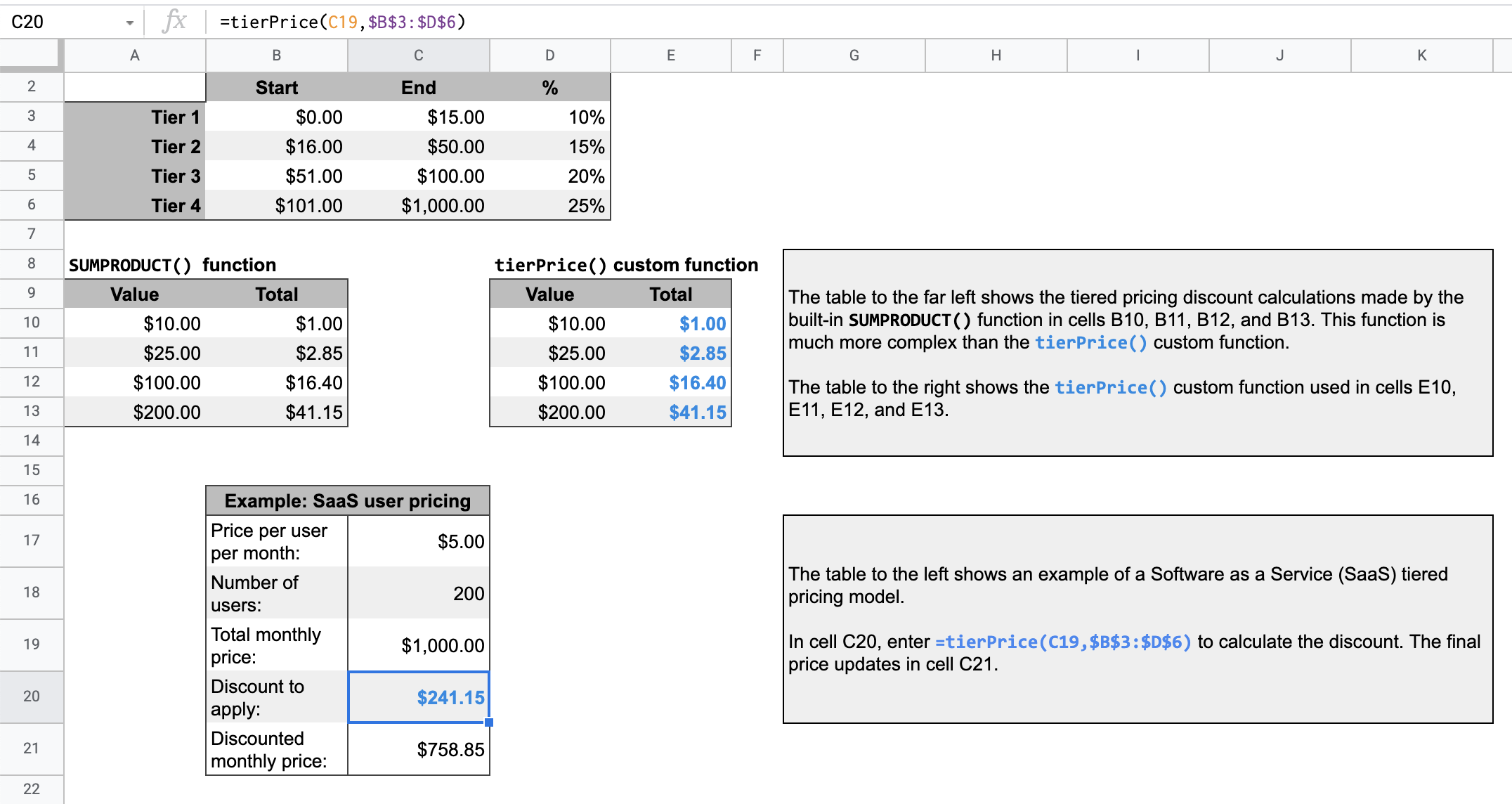
등급별 가격 계산을 보여주는 Google 시트

작동 방식

단계별 가격 책정 모델은 구매한 수량에 따라 상품 또는 서비스 비용이 낮아진다는 의미입니다.

예를 들어 0~500달러 범위에서 10% 할인되는 단계와 501~1,000달러 범위에서 20% 할인되는 두 단계가 있다고 가정해 보겠습니다. 할인을 계산해야 하는 총 가격이 700달러인 경우 스크립트는 처음 500달러에 10% 를 곱하고 나머지 200달러에 20%를 곱하여 총 90달러의 할인을 계산합니다.

지정된 총 가격에 대해 스크립트는 단계별 가격 책정 표에서 지정된 단계를 반복합니다. 단계에 해당하는 총 가격의 각 부분에 해당 단계의 연결된 백분율 값이 곱해집니다. 결과는 각 단계의 계산 합계입니다.

Apps Script 서비스

이 솔루션은 다음 서비스를 사용합니다.

기본 요건

이 샘플을 사용하려면 다음 기본 요건이 필요합니다.

  • Google 계정 (Google Workspace 계정의 경우 관리자 승인이 필요할 수 있음)
  • 인터넷에 액세스할 수 있는 웹브라우저

스크립트 설정

단계별 가격 책정 커스텀 함수 스프레드시트의 사본을 만들려면 다음 버튼을 클릭하세요.

사본 만들기

이 솔루션의 Apps Script 프로젝트는 스프레드시트에 연결되어 있습니다.

스크립트 실행

  1. 복사된 스프레드시트의 16행에 있는 표에는 Software as a Service (SaaS) 제품의 샘플 가격 계산이 표시됩니다.
  2. 할인 금액을 계산하려면 C20 셀에 =tierPrice(C19,$B$3:$D$6)을 입력합니다. C21 셀의 최종 가격이 업데이트됩니다. 소수점 쉼표를 사용하는 위치에 있는 경우 대신 =tierPrice(C19;$B$3:$D$6)을 입력해야 할 수 있습니다.

코드 검토

이 솔루션의 Apps Script 코드를 검토하려면 소스 코드 보기를 클릭하세요.

소스 코드 보기

Code.gs

solutions/custom-functions/tier-pricing/Code.js
// To learn how to use this script, refer to the documentation:
// https://developers.google.com/apps-script/samples/custom-functions/tier-pricing

/*
Copyright 2022 Google LLC

Licensed under the Apache License, Version 2.0 (the "License");
you may not use this file except in compliance with the License.
You may obtain a copy of the License at

    https://www.apache.org/licenses/LICENSE-2.0

Unless required by applicable law or agreed to in writing, software
distributed under the License is distributed on an "AS IS" BASIS,
WITHOUT WARRANTIES OR CONDITIONS OF ANY KIND, either express or implied.
See the License for the specific language governing permissions and
limitations under the License.
*/

/**
 * Calculates the tiered pricing discount.
 *
 * You must provide a value to calculate its discount. The value can be a string or a reference
 * to a cell that contains a string.
 * You must provide a data table range, for example, $B$4:$D$7, that includes the
 * tier start, end, and percent columns. If your table has headers, don't include
 * the headers in the range.
 *
 * @param {string} value The value to calculate the discount for, which can be a string or a
 * reference to a cell that contains a string.
 * @param {string} table The tier table data range using A1 notation.
 * @return number The total discount amount for the value.
 * @customfunction
 *
 */
function tierPrice(value, table) {
  let total = 0;
  // Creates an array for each row of the table and loops through each array.
  for (const [start, end, percent] of table) {
    // Checks if the value is less than the starting value of the tier. If it is less, the loop stops.
    if (value < start) {
      break;
    }
    // Calculates the portion of the value to be multiplied by the tier's percent value.
    const amount = Math.min(value, end) - start;
    // Multiplies the amount by the tier's percent value and adds the product to the total.
    total += amount * percent;
  }
  return total;
}

수정사항

필요에 맞게 커스텀 함수를 원하는 만큼 수정할 수 있습니다. 커스텀 함수 결과를 수동으로 새로고침하는 선택적 추가사항을 보려면 캐시 처리된 결과 새로고침을 클릭하세요.

캐시 처리된 결과 새로고침

기본 제공 함수와 달리 Google은 성능을 최적화하기 위해 커스텀 함수를 캐시합니다. 따라서 계산 중인 값과 같이 커스텀 함수 내에서 무언가를 변경해도 즉시 업데이트가 적용되지 않을 수 있습니다. 함수 결과를 수동으로 새로고침하려면 다음 단계를 따르세요.

  1. 삽입 > 체크박스를 클릭하여 빈 셀에 체크박스를 추가합니다.
  2. 체크박스가 있는 셀을 커스텀 함수에 추가 매개변수로 추가합니다. 예를 들어 D20 셀에 체크박스를 추가하는 경우 tierPrice() 셀의 함수를 C20으로 =tierPrice(C19,$B$3:$D$6,D20) 업데이트합니다.
  3. 체크박스를 선택하거나 선택 해제하여 커스텀 함수 결과를 새로고침합니다.

참여자

이 샘플은 Google Developer Experts의 도움을 받아 Google에서 유지관리합니다.

다음 단계